Custom Folder Icon Changer
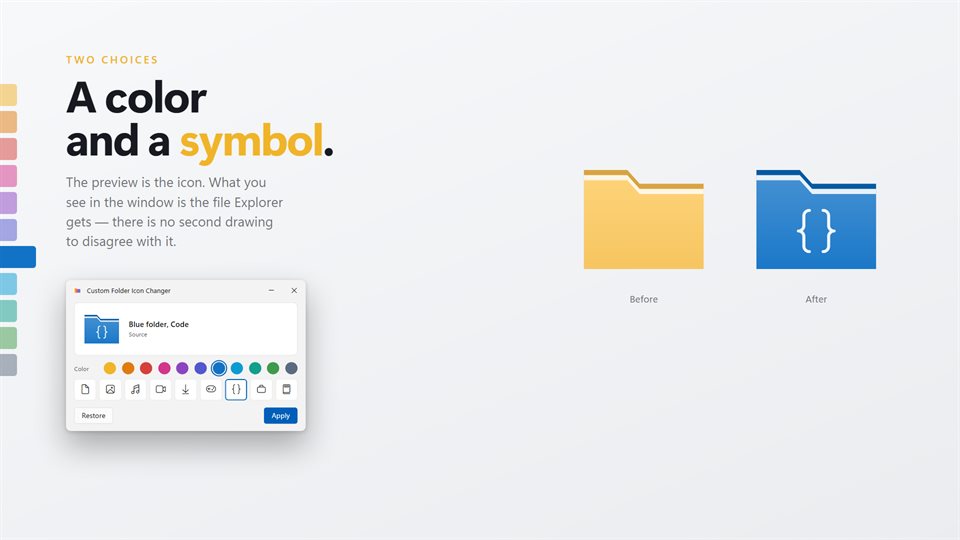
Color a folder, put a symbol or a picture on it, and spot it in File Explorer without reading a single name.
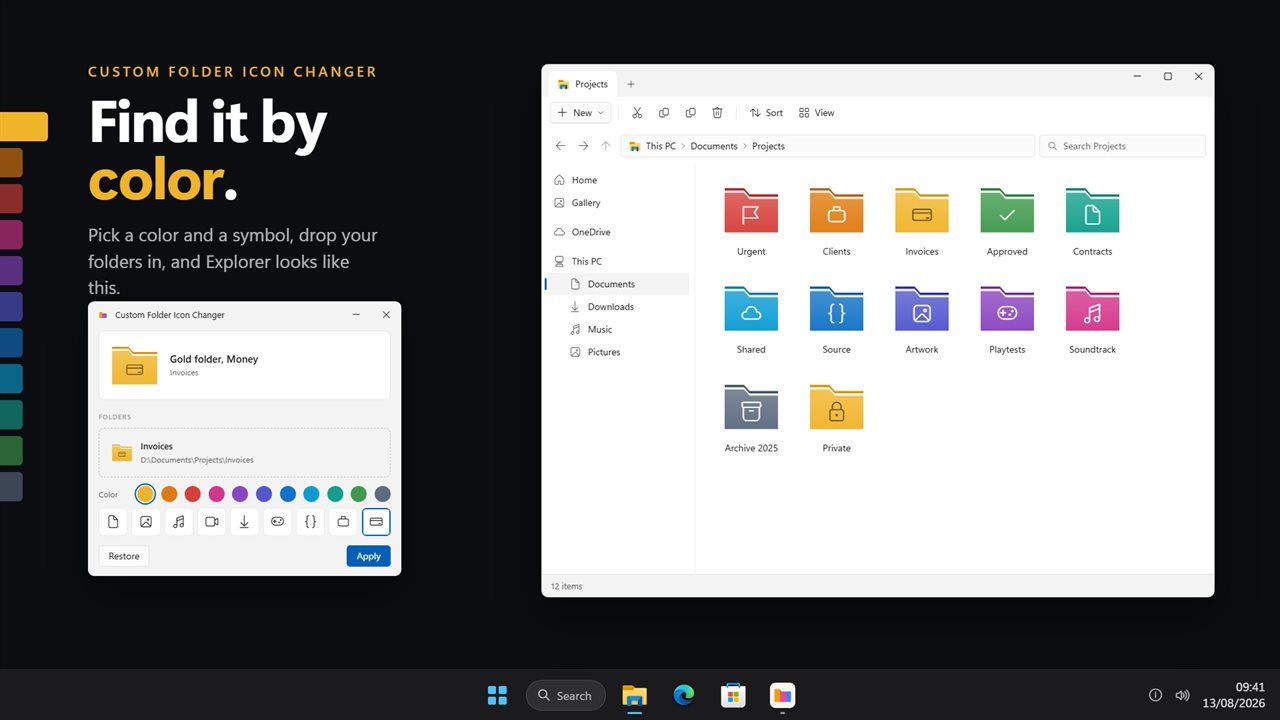
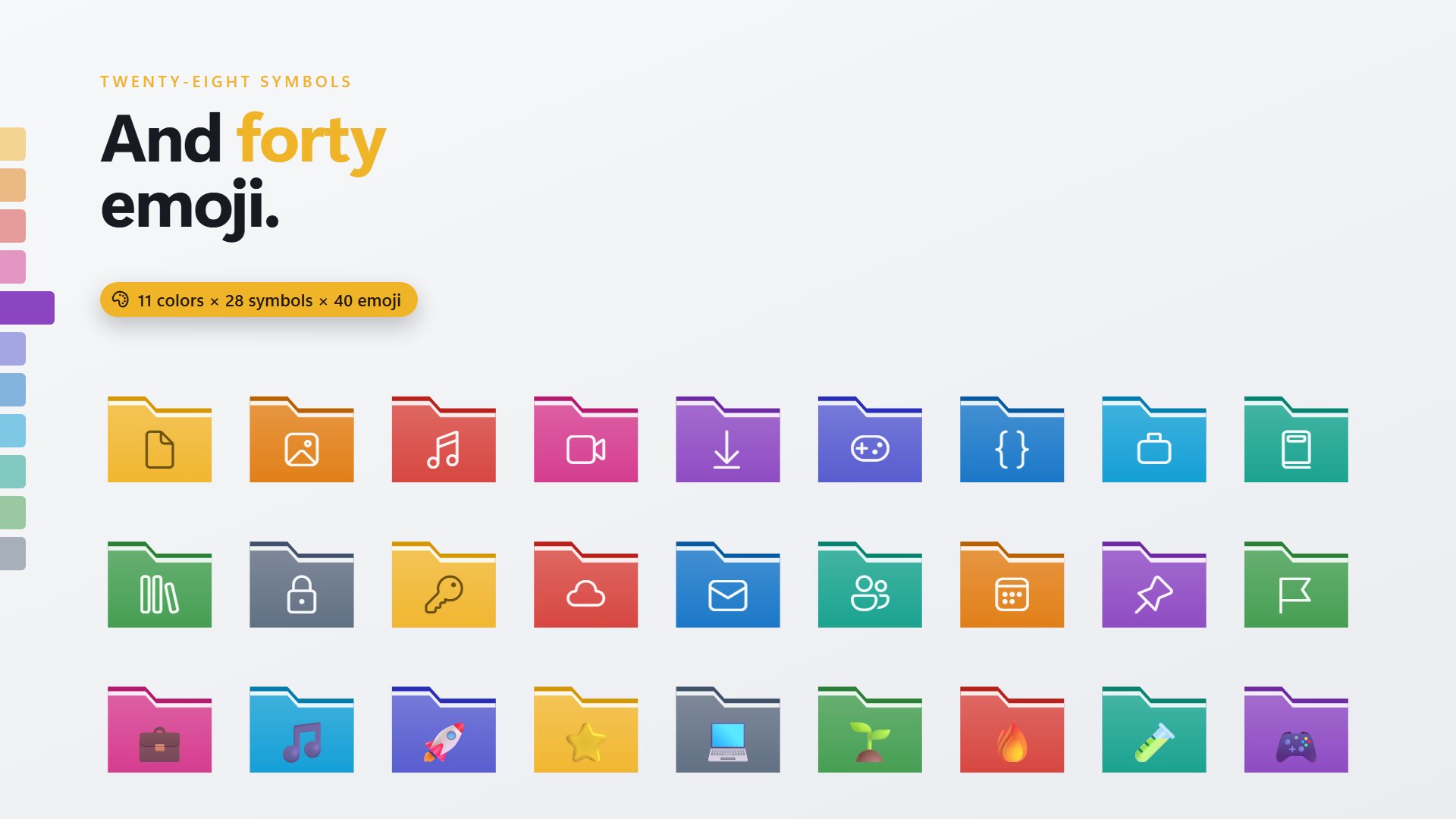
Plenty to tell folders apart
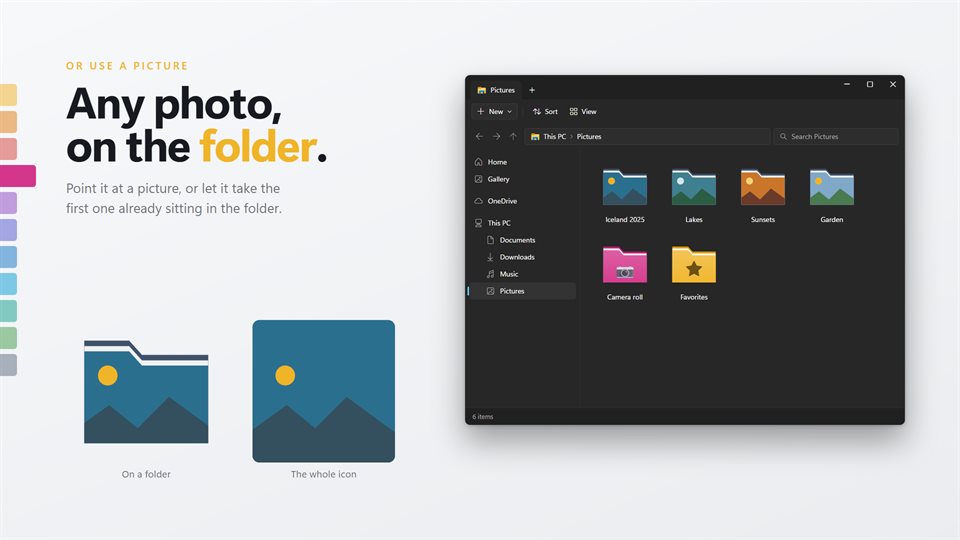
Or skip the presets: any color from the Windows picker, or a photo on the front of the folder.
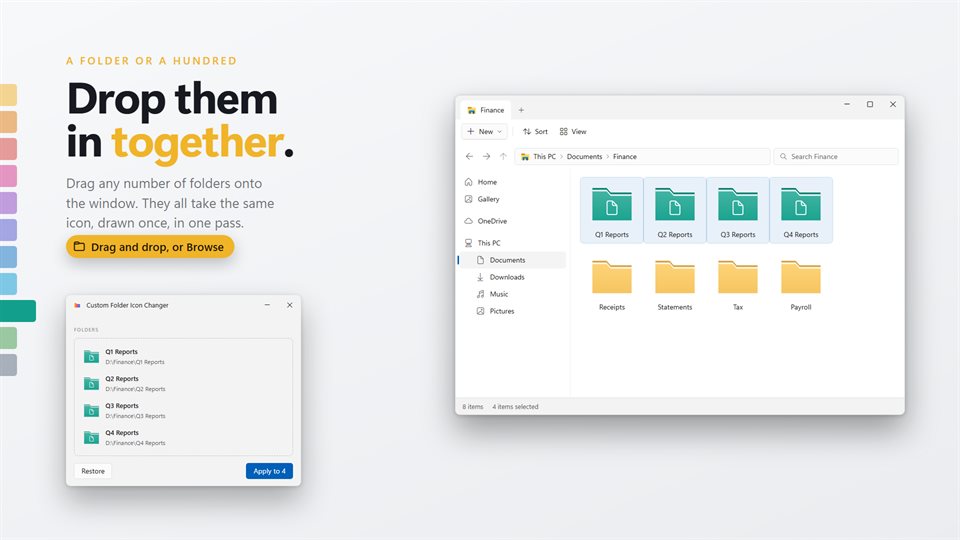
Change a whole batch at once
Drag in as many folders as you like and they all get the same icon in one go.
Undo it whenever you want
Every folder you change is listed, and Restore puts it back exactly as it was before.
See it in action
Straight from the app, and from File Explorer afterwards.
How does Windows give a folder its own icon?
Windows lets any folder carry its own icon. It looks for a small hidden settings file inside the folder, called desktop.ini, that points to an icon file. That is how the Pictures and Music folders get their own look.
Custom Folder Icon Changer draws the icon you designed, saves it inside the folder with the settings file, and tells Explorer to refresh. Because both files live in the folder, the icon follows it when you move it, rename it or sync it to another PC.
Windows sometimes drops custom icons by itself, for example after a sync or when its icon cache is rebuilt. The app keeps a list of what you changed, shows which ones have gone back to plain yellow, and puts them all back with one button.
What people use it for
Projects and clients
A color per client or a symbol per project, so the right folder stands out in a long list.
Photo collections
Put one of the photos inside on the folder's front, picked automatically from what is already there.
A desktop you can scan
Work, bills, school and games in different colors, readable before the names are.
What people say
★★★★★“It is better now and has more option and it user interface better.”
Details
- Works on
- Windows 10 (1809 or later) and Windows 11
- Download
- About 2.4 MB
- Version
- 2.0.5, updated October 2026
- Price
- $2.99 once. No subscription, no in-app purchasesUS price; the Store shows yours.
- Privacy
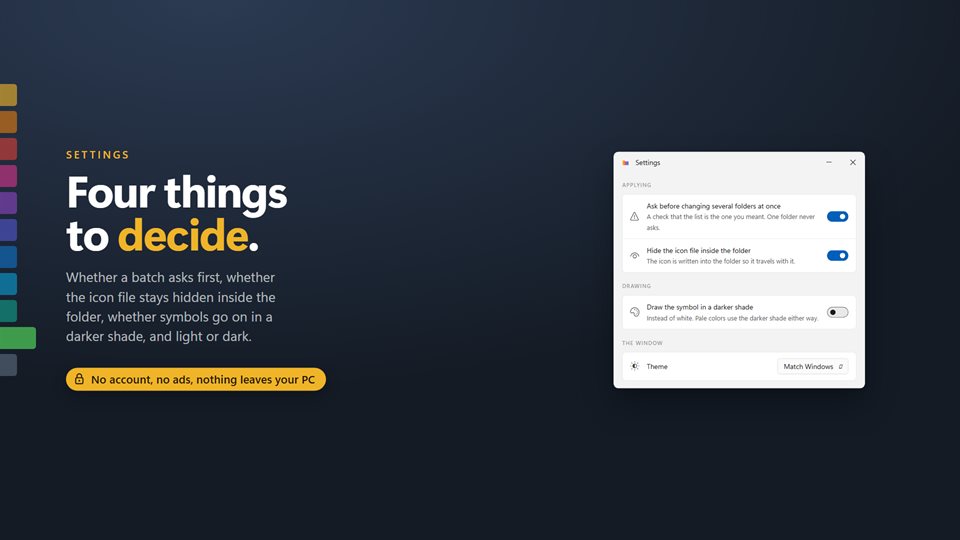
- No account, no ads, nothing leaves your PC
- Category
- Personalization
What's new in 2.0
- Any color from the Windows color picker, as well as eleven presets
- Forty emoji alongside the twenty-eight symbols
- A live preview at the small sizes Explorer draws
- Any number of folders changed in one pass
- Pictures on the folder, or as the whole icon
- A list of changed folders, with Restore and a one-button fix for dropped icons
Questions
Anything else: [email protected]
Do I have to restart Explorer or sign out?
No. The folder changes in the window you already have open.
Does the icon stay if I move the folder?
Yes. The icon is stored inside the folder, so it moves and syncs with it. The file is hidden by default.
Can I go back to the normal yellow folder?
Yes. Restore puts each folder back exactly as it was, including any icon it had before.
Can I use my own picture?
Yes. Put it on the front of the folder or use it as the whole icon. One button takes the first picture already in the folder.
Does it need the internet or an account?
No. Nothing leaves your PC.