Mouse Wheel AutoScroll
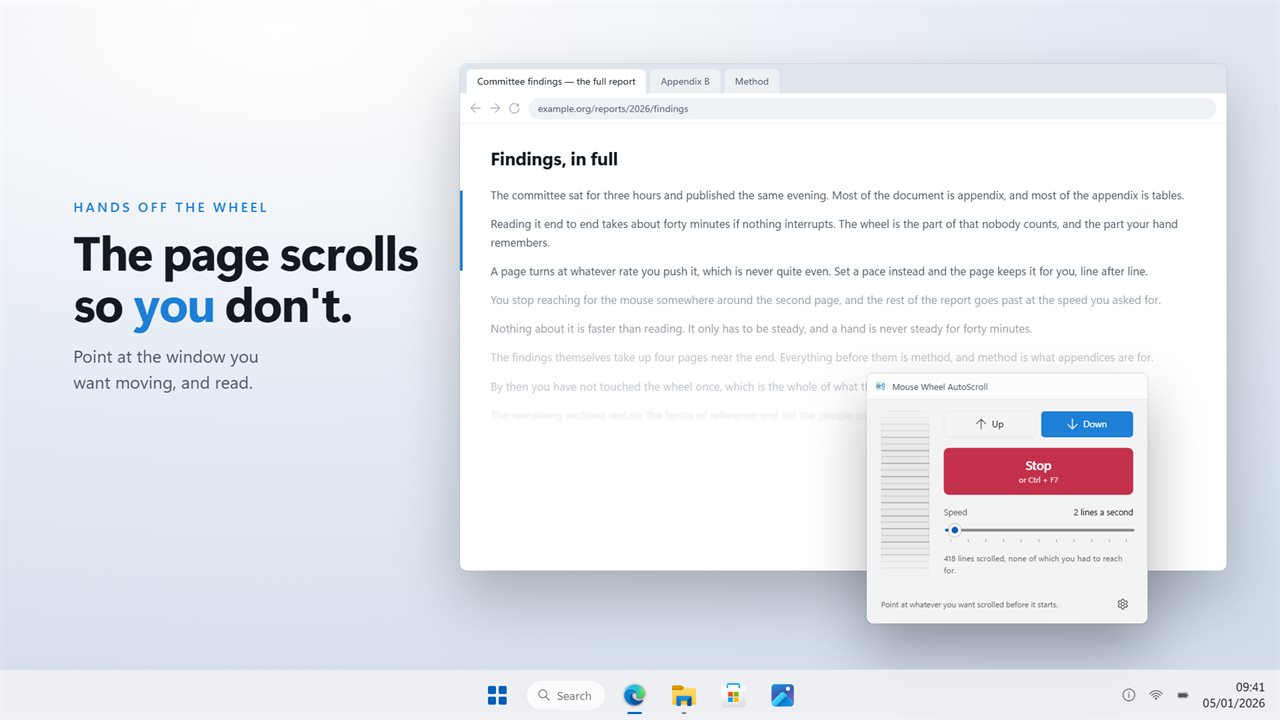
Turns the mouse wheel for you, one line at a time, so a long page moves past at reading pace while your hands stay off the mouse.
A speed you can watch
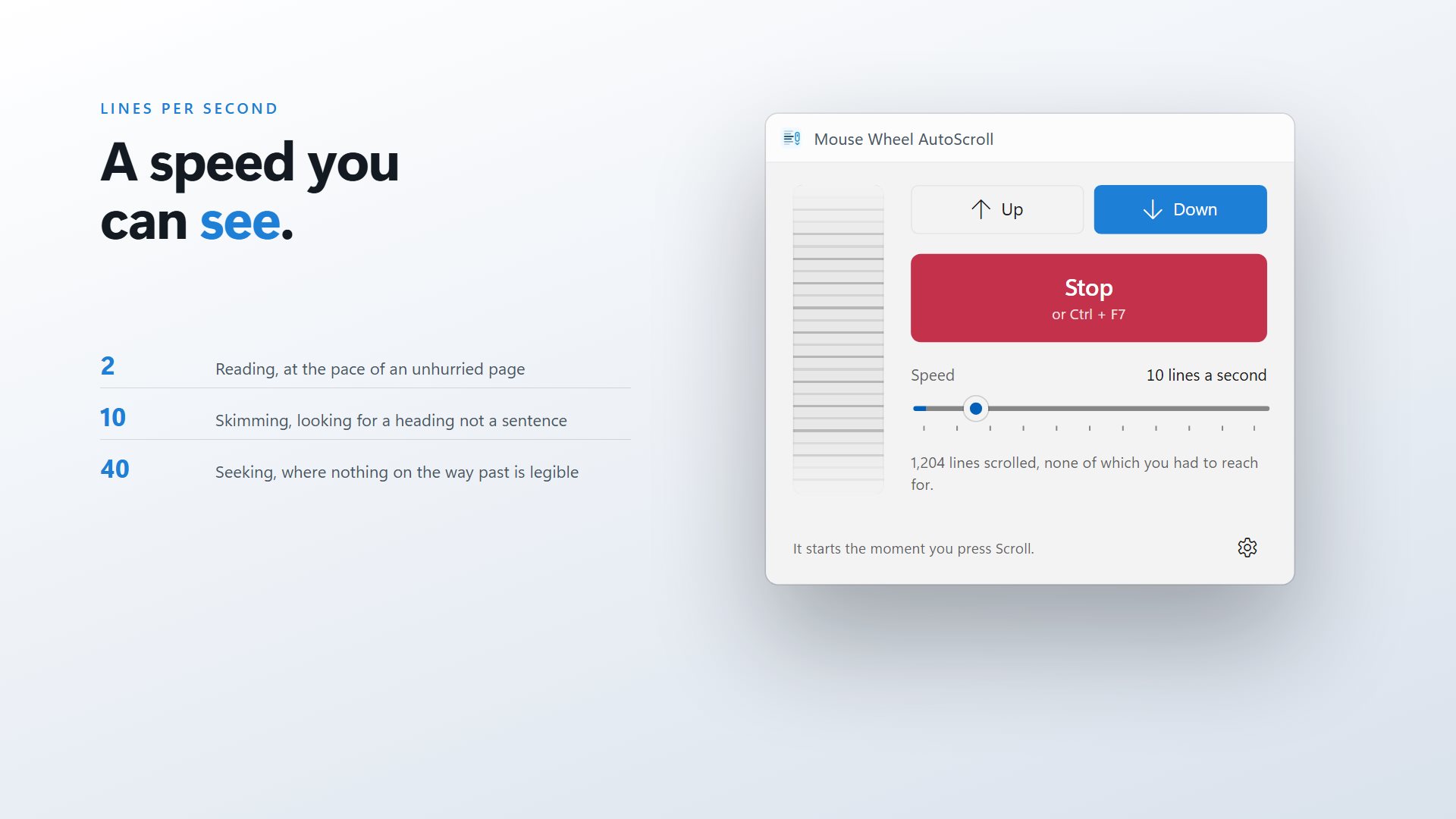
The window shows the chosen speed as a moving rail, so you can judge a pace by eye before you start it.
Controlled from where you are reading
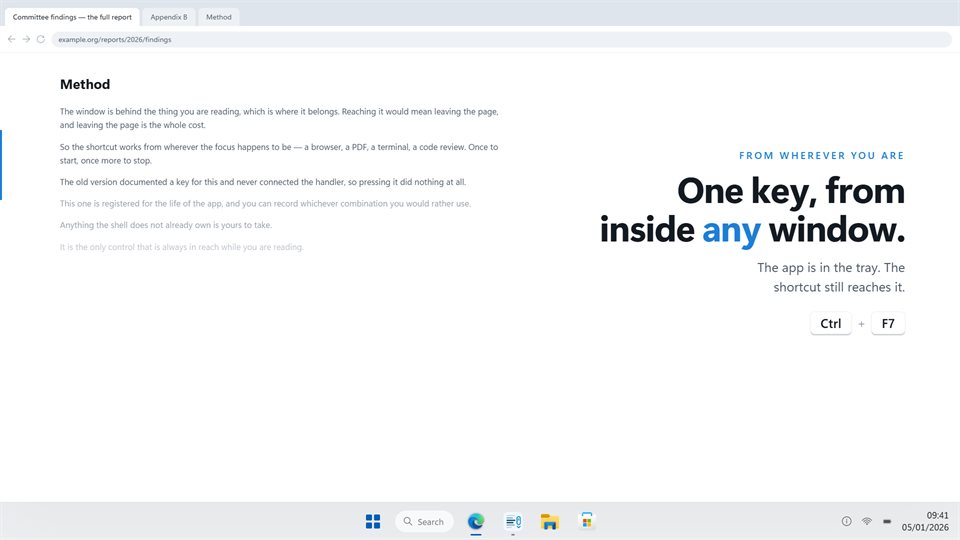
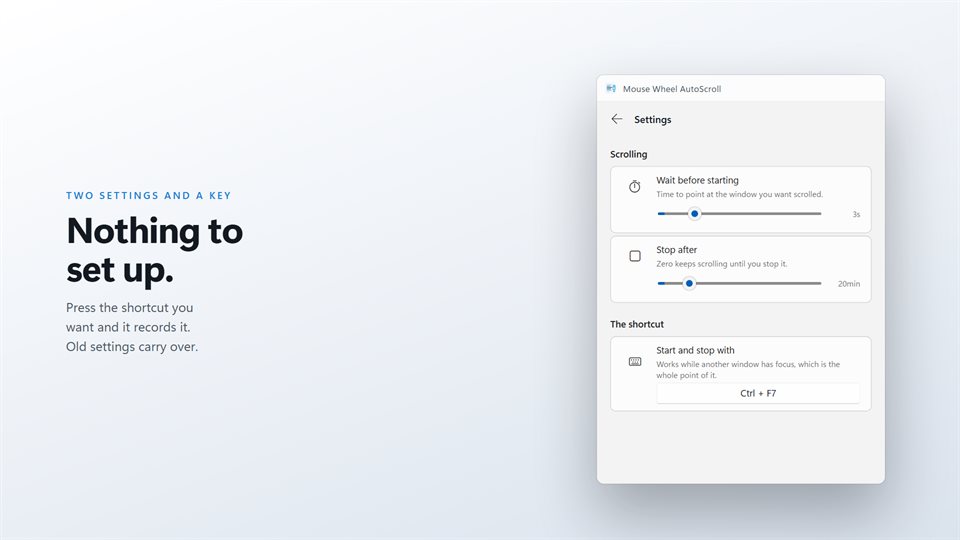
The shortcut starts and stops scrolling while another app has focus. Record any key combination you prefer.
Runs for as long as you want
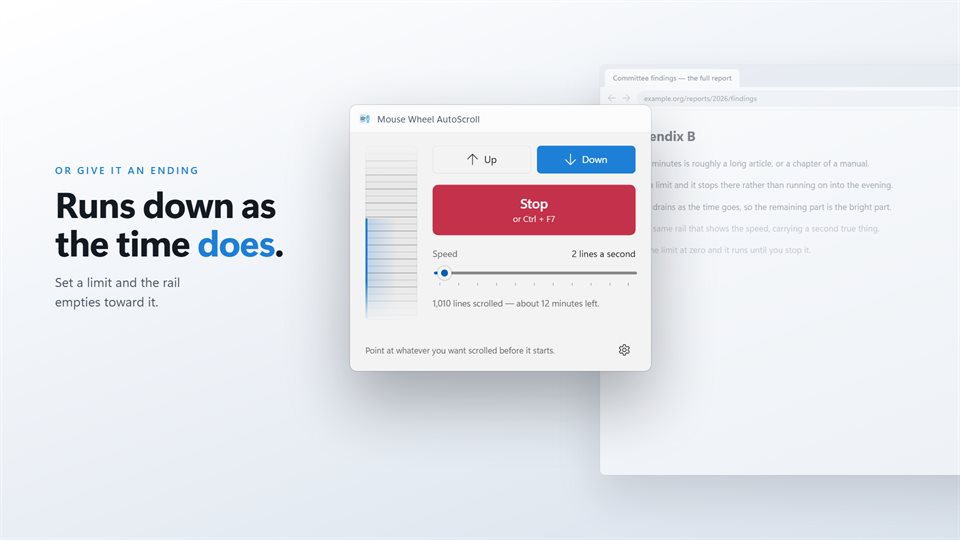
Set a time limit and watch it count down, or leave it at zero and it keeps going until you stop it.
See it in action
Screenshots from the app on Windows 11.
Why scroll by lines?
A mouse wheel moves in notches, and each notch moves a page by a few lines. Mouse Wheel AutoScroll sends those same notches on a timer, so the page scrolls exactly as it would if you were turning the wheel yourself, and works in any app that responds to a wheel: browsers, PDF readers, code editors, chat logs.
Speed is a plain count of lines per second. Two is a comfortable reading pace for most text. Ten skims. Sixty is for running down a long log to the bottom.
Scrolling goes to the window under the pointer. That is why it waits a few seconds after you press start: long enough to move the pointer over the page and let go.
What people use it for
Reading long pages hands-free
Articles, manuals and documentation that move by on their own while you sit back.
Reading from the screen
A speech, a script or song lyrics that need to keep moving while you perform.
Working through logs and lists
Letting a long file or feed scroll past at a steady rate while you watch for something.
Details
- Works on
- Windows 10 (1809 or later) and Windows 11
- Download
- About 2.6 MB
- Version
- 2.0.8, updated October 2026
- Price
- $2.99 once. No subscription, no in-app purchasesUS price; the Store shows yours.
- Privacy
- No account, no ads, nothing leaves your PC
- Category
- Utilities & tools
What's new in 2.0
- Any speed from 1 to 60 lines a second, instead of four fixed steps
- A moving rail that shows the speed, and answers your own wheel too
- Up or down, switchable while it runs
- A stop timer that counts down in the window
- Your own shortcut, recorded in Settings
- Lives in the tray, and your old settings carry over on first launch
Questions
Anything else: [email protected]
Which apps does it work in?
Anything that scrolls with a mouse wheel. It scrolls the window under the pointer.
Can I change the speed while it is scrolling?
Yes. Speed and direction both take effect straight away.
How do I stop it?
Press the shortcut again, use the button in the window, or choose Turn off from the tray menu.
Can it start with Windows?
Yes, through Windows' own Startup settings, and it can start in the tray.
Does it need the internet or an account?
No. Nothing leaves your PC.