Blaze CPU Stress Test
Light up every core and see how much turbo your processor really has. Click the burner, watch the flame climb with the load, and read the CPU Boost figure Task Manager hides: the share of processor utility running past 100%.
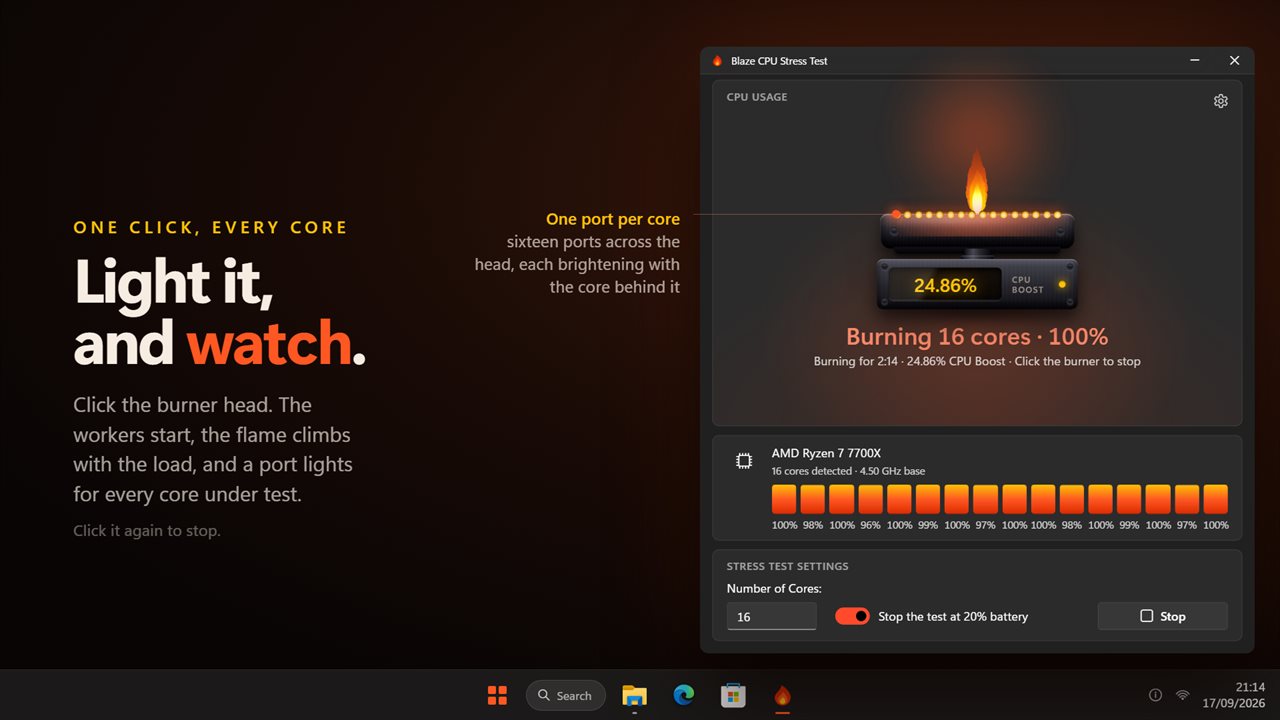
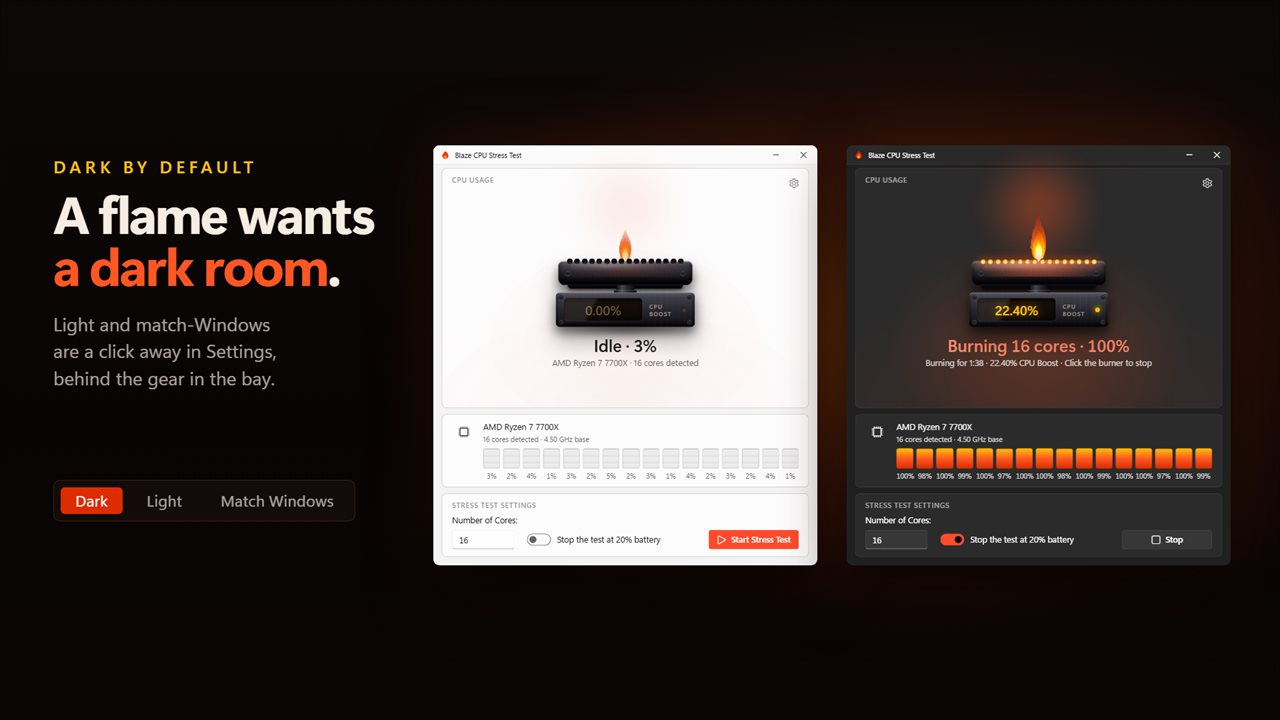
Click the burner and every core you picked lights up.
See it in action
About Blaze CPU Stress Test
Most load tools tell you the processor is at 100%. Blaze CPU Stress Test tells you what is happening above it.
Click the burner
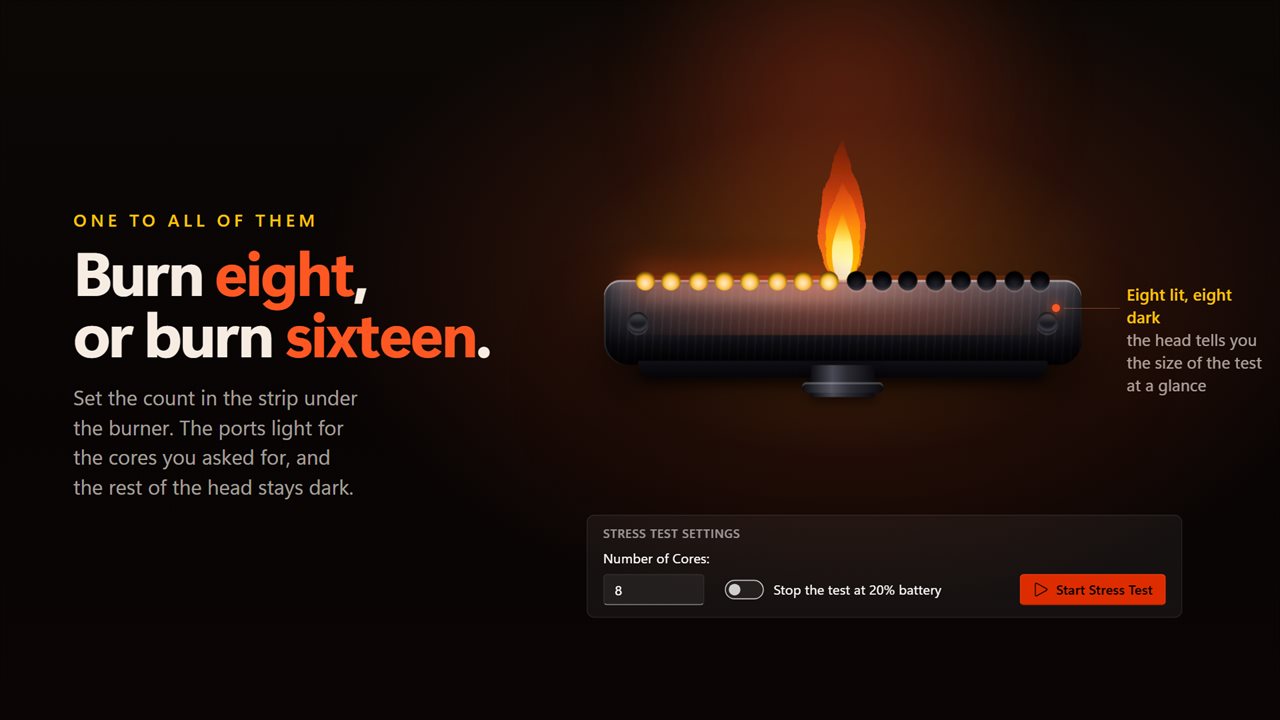
The app is built around a gas burner. Click its head and the workers start, one per core you asked for, up to every logical processor the PC has. The flame climbs with the load and the ports in the burner head light up for the cores under test, each one brightening with the core behind it. Click again to stop. There is a Start Stress Test button too, for anyone who wants one.
The boost gauge
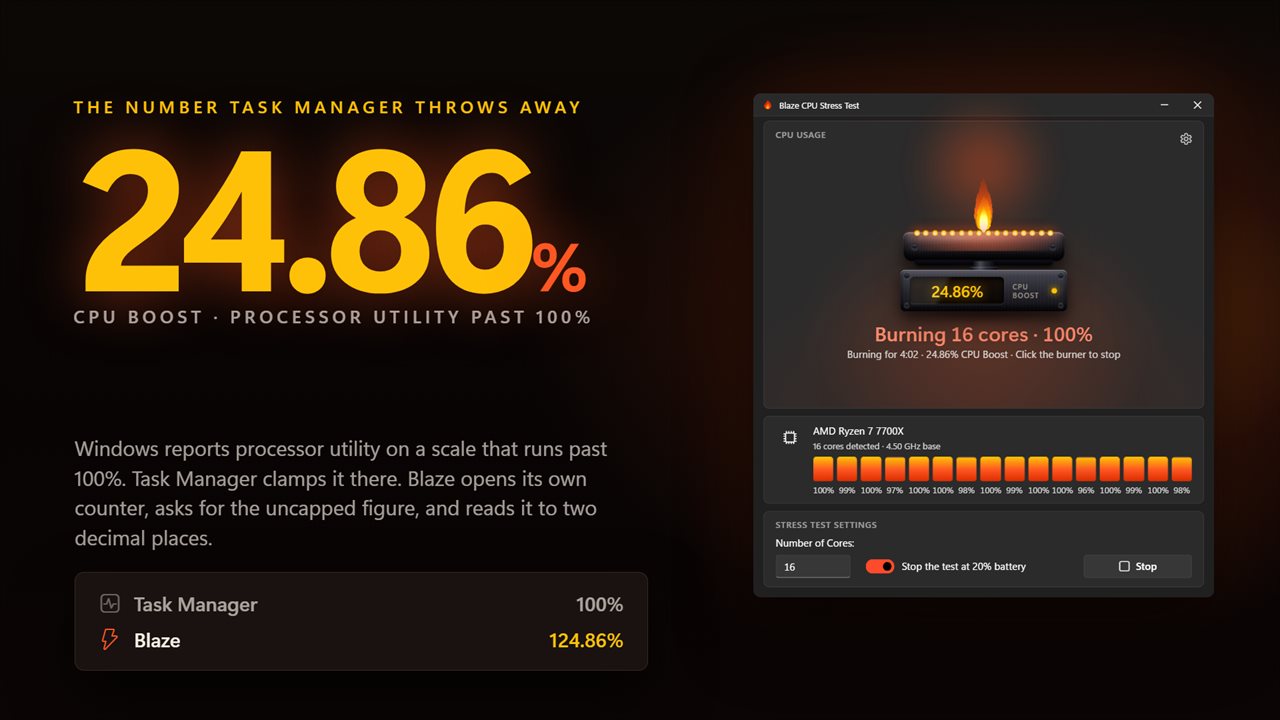
The gauge beside the burner reads CPU Boost. Windows reports processor utility on a scale that can pass 100%, and the share above 100 is the real turbo headroom your processor is finding. Task Manager clamps that figure at 100 and you never see it. This app opens its own counter, asks for the uncapped value, and shows it to two decimal places while the test runs.
A flat load
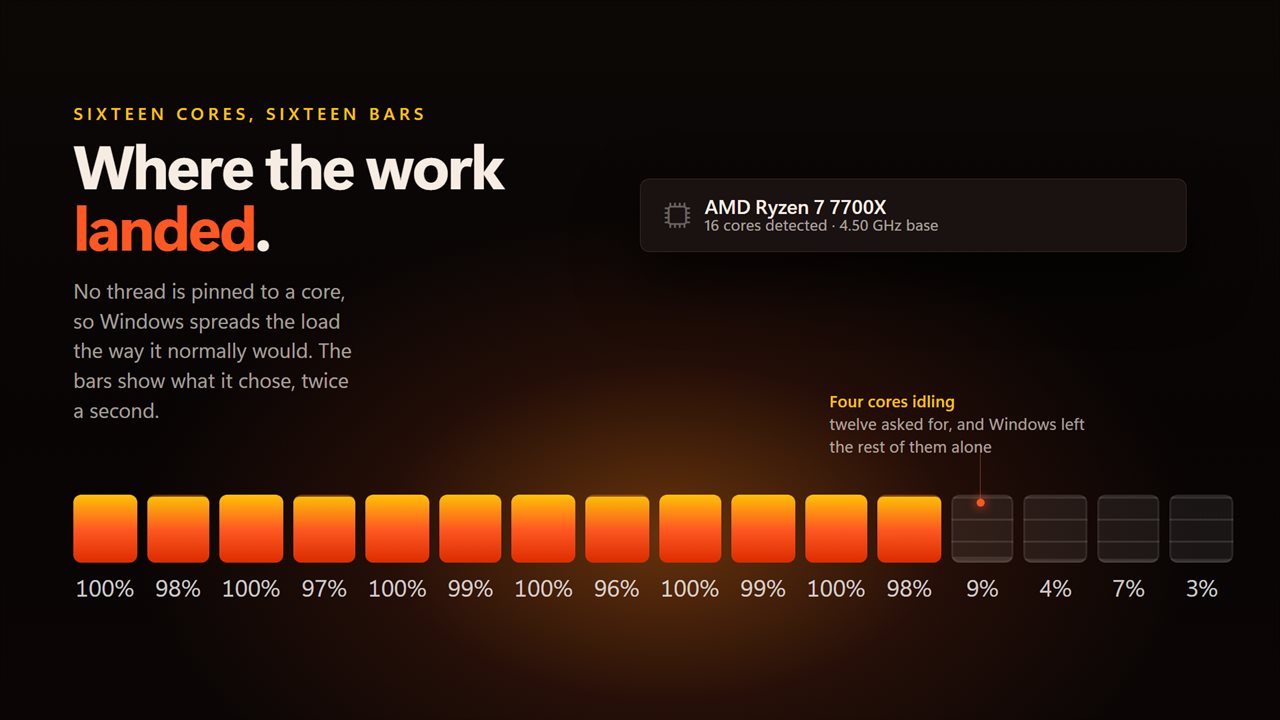
Each worker thread spins for 99 milliseconds of every 100 and rests for one. The load is steady rather than bursty, and no thread is pinned to a core, so Windows spreads the work the way it normally would.
What you see while it runs
The headline reads how many cores are burning and the total load. Under it, the elapsed time counts up and the boost figure sits beside it. A bar for every core shows where the work actually landed, and above them the app names your processor, how many cores it found, the performance and efficiency core split on a hybrid chip, and the base clock.
On a laptop
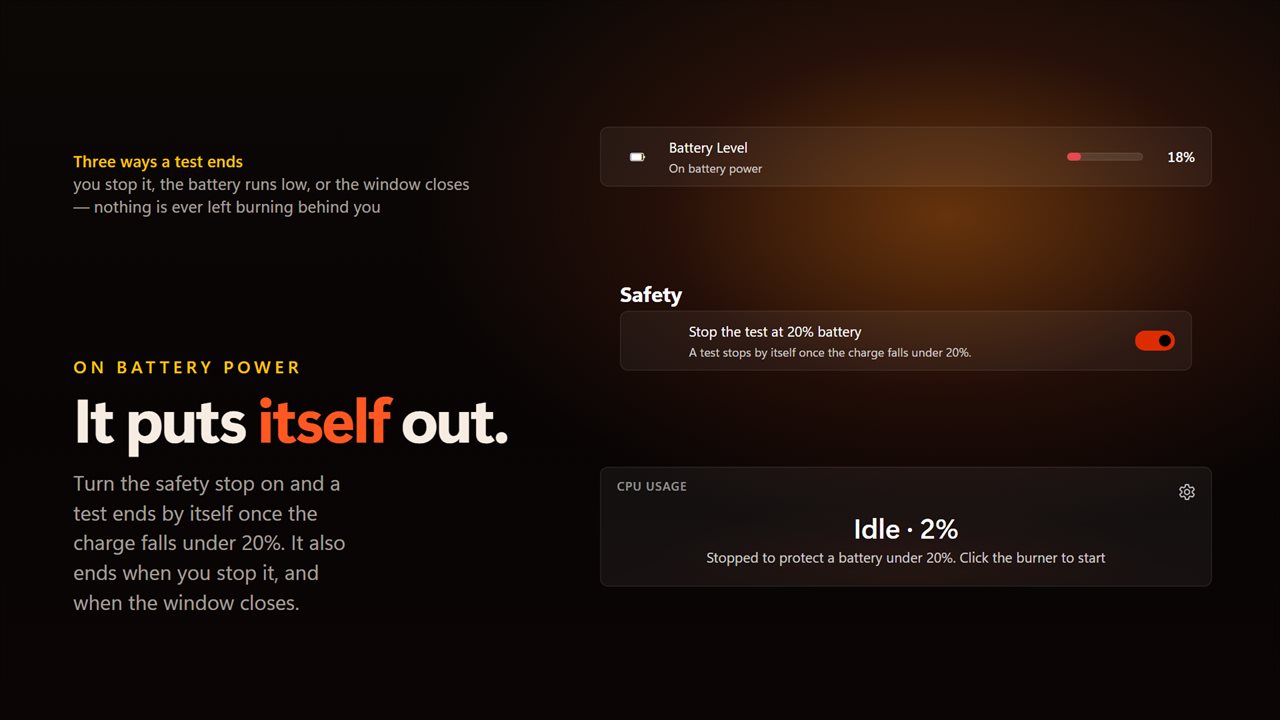
The battery row shows the charge and whether you are charging, plugged in or running on battery power. Turn on the safety stop and a test ends by itself once the charge falls under 20%. A test also ends when you stop it and when the window closes, so nothing is left burning behind you.
No account. No sign-in. Nothing leaves your PC unless you choose to send feedback. Dark by default, with light and match-Windows themes.
Built for Windows 11, and at home on Windows 10.
Features
- Loads from one thread up to every logical processor your PC has
- Reports CPU Boost: how far past 100% the processor utility counter runs, which is the turbo headroom Task Manager caps off
- Each worker spins for 99 milliseconds of every 100, so the load is flat rather than bursty
- A burner you click to start and stop, with one flame port per core up to sixteen
- The flame grows with the load, and the ports brighten with the core behind them
- A live bar per core and the total load, refreshed twice a second
- Reads your processor's model name, its performance and efficiency core split, and its base clock
- Battery level with whether you are charging, plugged in or running on battery
- Optional safety stop once the charge falls under 20%
- Stops when you click again, when the battery runs low, or when the window closes
- Dark by default, with light and match-Windows options
- Works offline, with no account and nothing uploaded
Details
- Works on
- Windows 10 (1809 or later) and Windows 11
- Download
- About 2.4 MB
- Version
- 2.0.3, updated October 2026
- First released
- June 2023
- Price
- $2.49 once. No subscription.
- Category
- Utilities & tools
Questions
Anything else? Ask us
Which versions of Windows does it run on?
Windows 10 (version 1809 or later) and Windows 11.
Is it a subscription?
No. Blaze CPU Stress Test is a one-time purchase of $2.49, and updates are included.
How do I get it?
EvlarSoft apps are moving to direct downloads from this site. Ask to be notified and we will email you as soon as Blaze CPU Stress Test is ready to download.
More from EvlarSoft
 Battery Monitor WidgetWatches the battery and tells you before it matters, at the levels you choose.
 System Activity LED IndicatorsServer-style status lights for CPU, memory, disk, network and battery, on a small strip that sits at the edge of your screen.
 Ram CleanerA memory cleaner with a ring that shows what your RAM is really doing, and a log of everything it has reclaimed.