Desktop Authenticator
Two-factor codes on your PC. Press Ctrl+Alt+Q, type a name, and copy the code or type it into the field you are in. A desktop widget, Google Authenticator import and a Windows Hello lock.
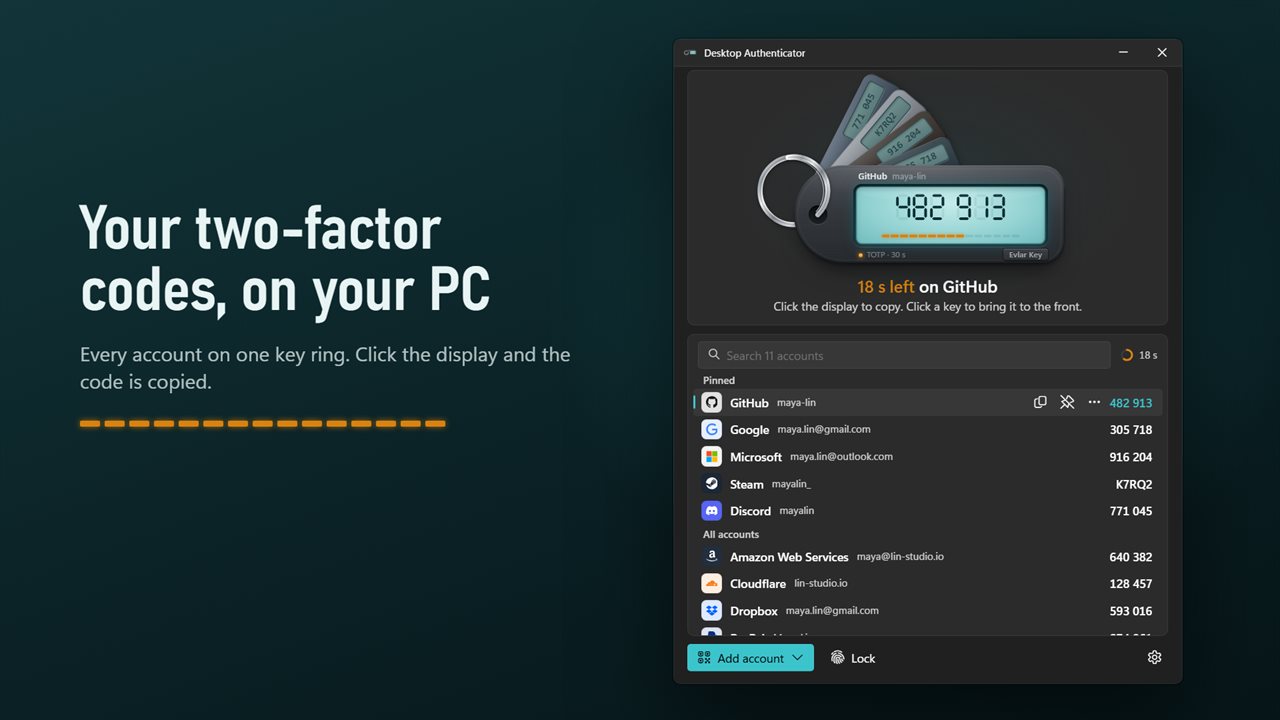
Your two-factor codes on your PC. Click the display to copy.
See it in action
About Desktop Authenticator
Sign in without reaching for your phone. Desktop Authenticator keeps your two-factor codes on your PC and puts them where you need them.
Codes where you are typing
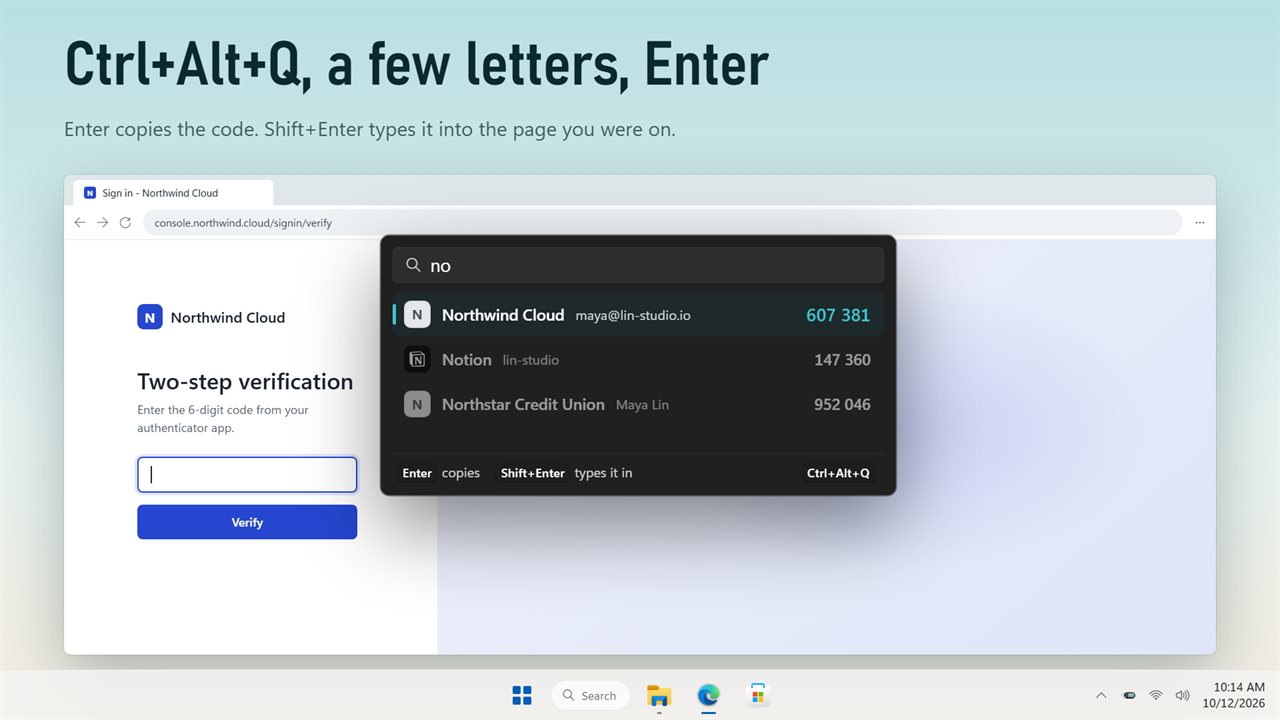
Press Ctrl+Alt+Q from any app and a small box opens. Type a few letters of the account, press Enter and the code is copied. Press Shift+Enter instead and the code is typed straight into the field you were in. A copied code is cleared from the clipboard after 15 seconds to 2 minutes, and kept out of clipboard history.
On your desktop
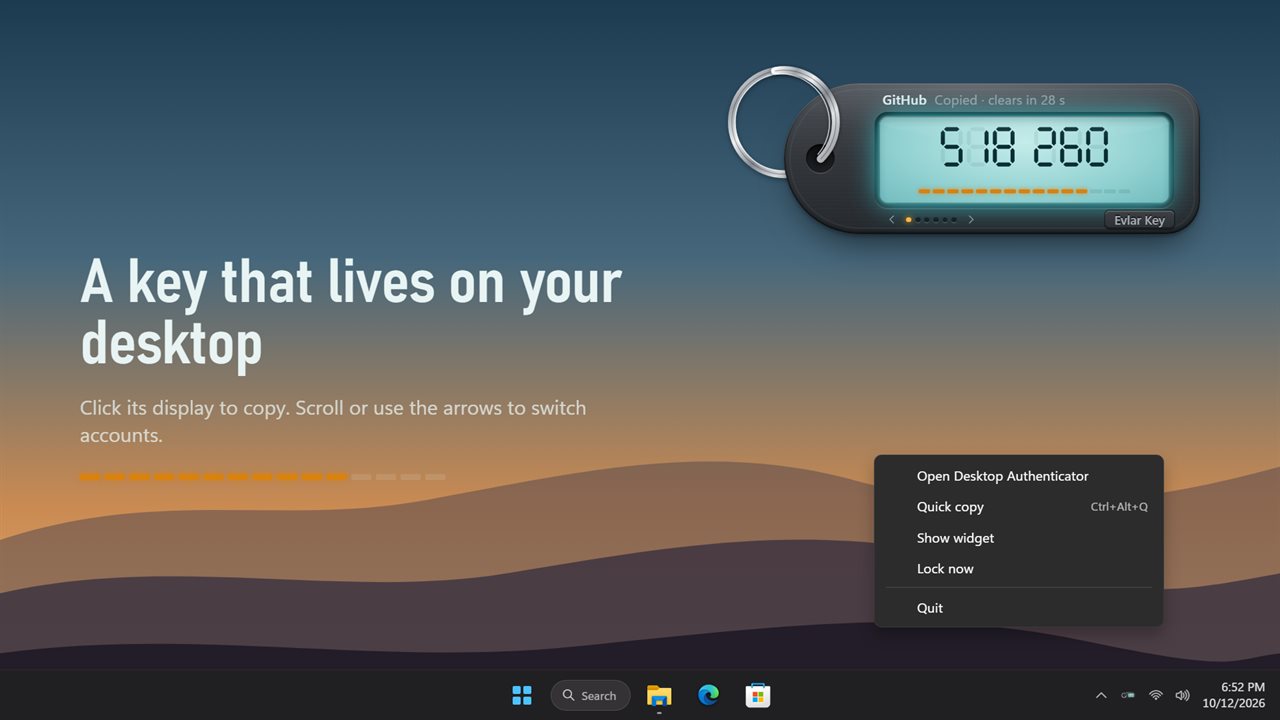
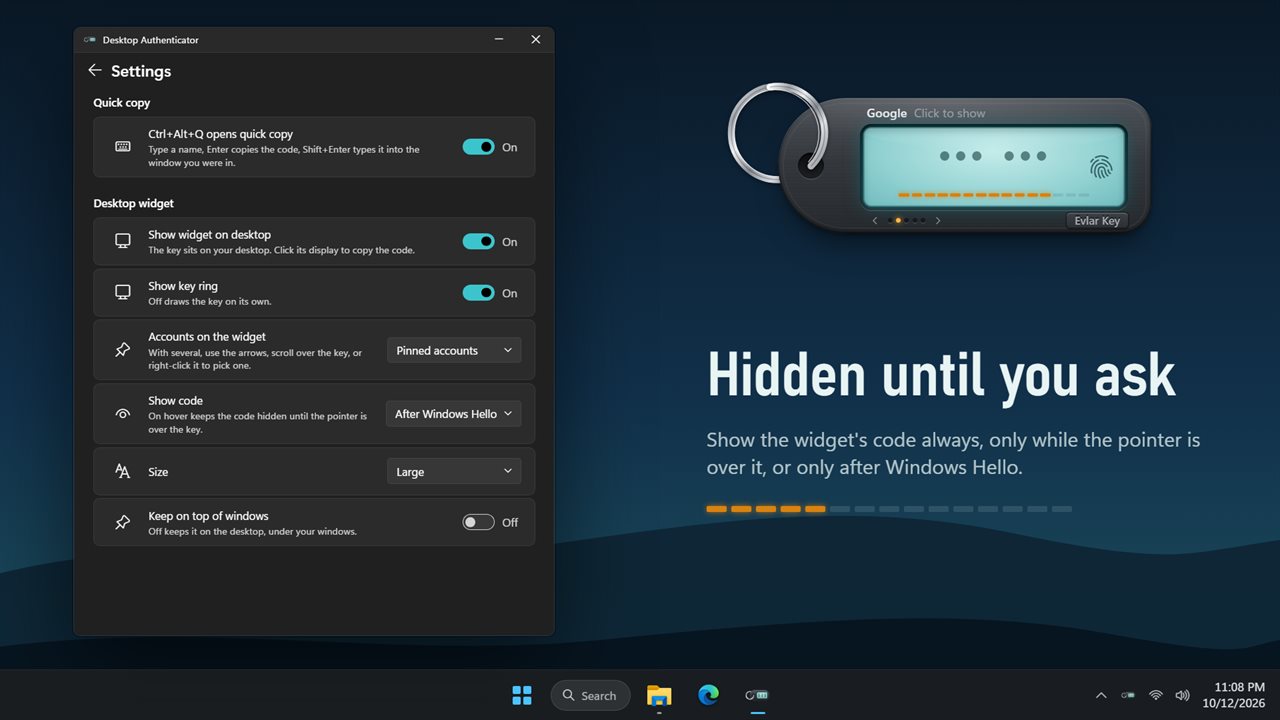
Turn on the widget and your key sits on the desktop, under your windows or on top of them. Click its display to copy the code. Show the code always, only while the pointer is over the key, or only after Windows Hello, so people nearby cannot read it. With several accounts on the key, switch between them with its arrows, the scroll wheel or a right-click. Choose small, medium or large, with or without the key ring.
Bring your accounts over
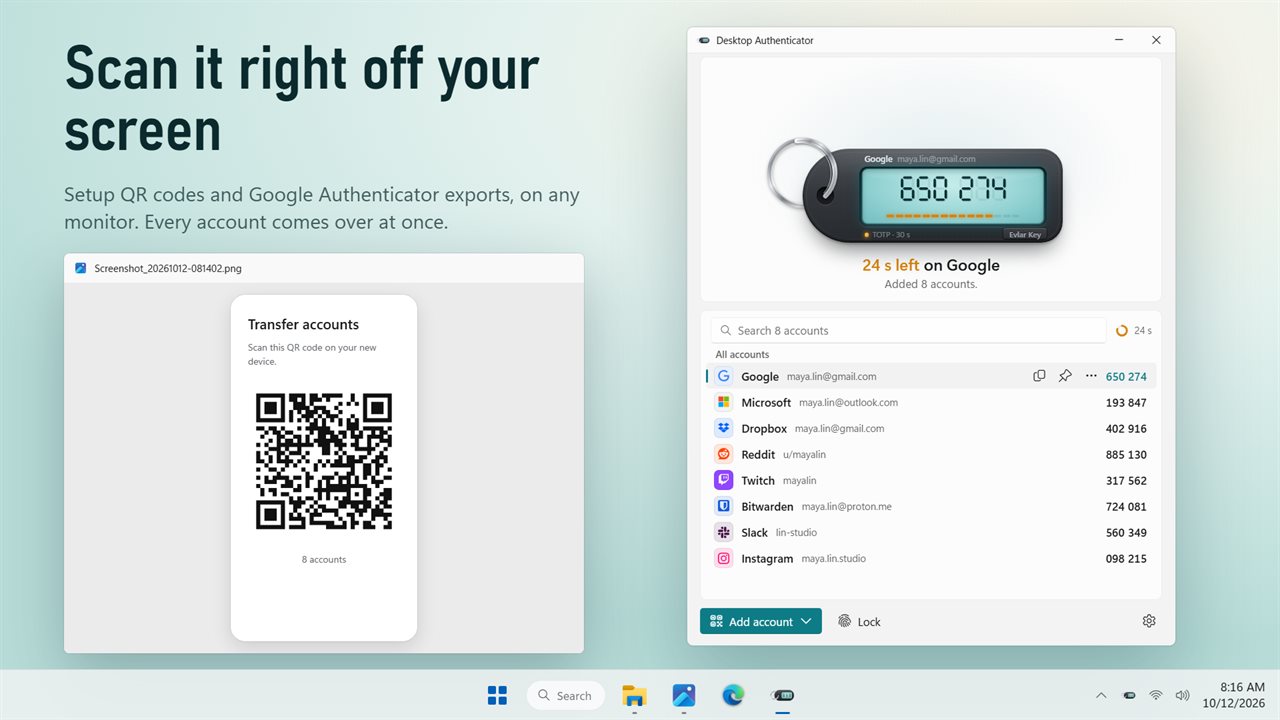
In Google Authenticator on your phone, export your accounts and take a screenshot of the QR code. Open the picture on your PC, choose Scan a QR code on screen, and every account comes across at once. Setup QR codes from websites work the same way, on any of your monitors, light or dark. You can also paste a setup link or an export link, or type the key by hand.
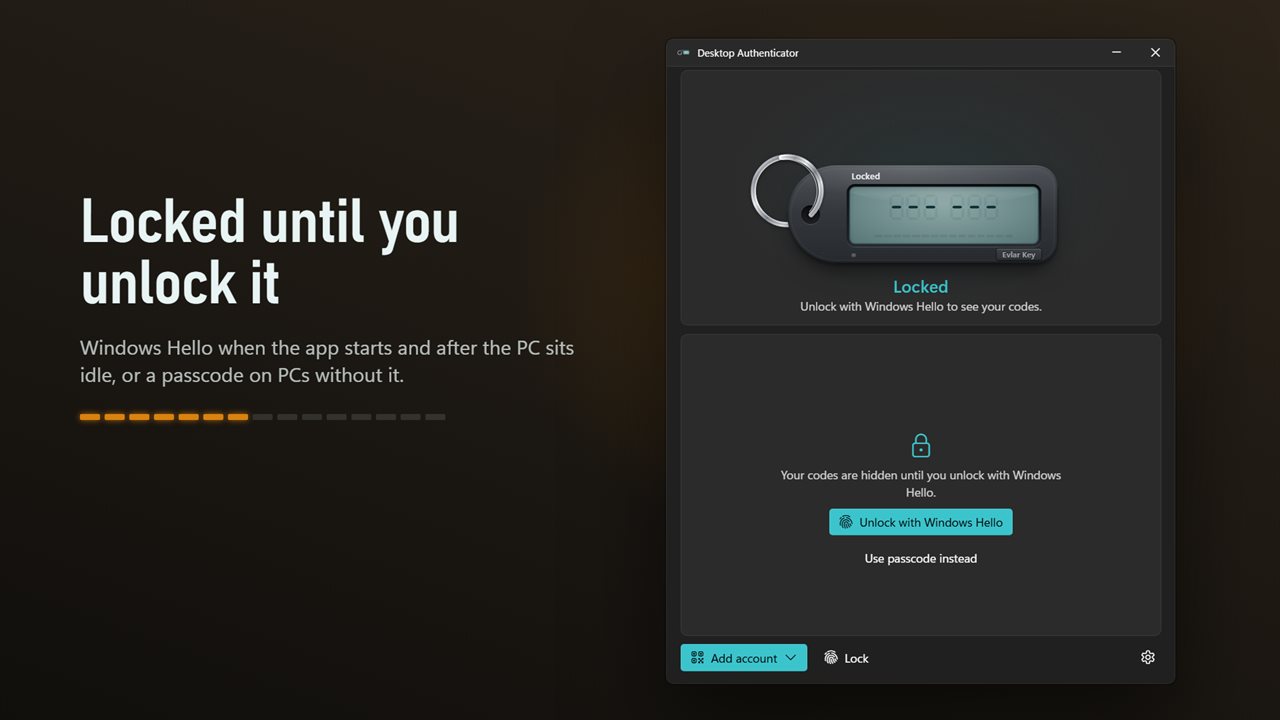
Locked with Windows hello or a passcode
The app asks for your face, fingerprint or PIN when it starts, and again after the PC has been idle for the time you choose. On a PC without Windows Hello, set an app passcode instead. After 5 wrong tries it makes you wait. The Lock button hides your codes at once. Your accounts are encrypted with your Windows account and never leave this PC.
Easy to read
The account you use most sits on the front of a key ring with its code in large digits and a bar that drains as the code runs out. In the last 5 seconds the next code appears below it. Pin your favorites to the ring and click one to bring it to the front. Search when the list gets long.
Works with your sites
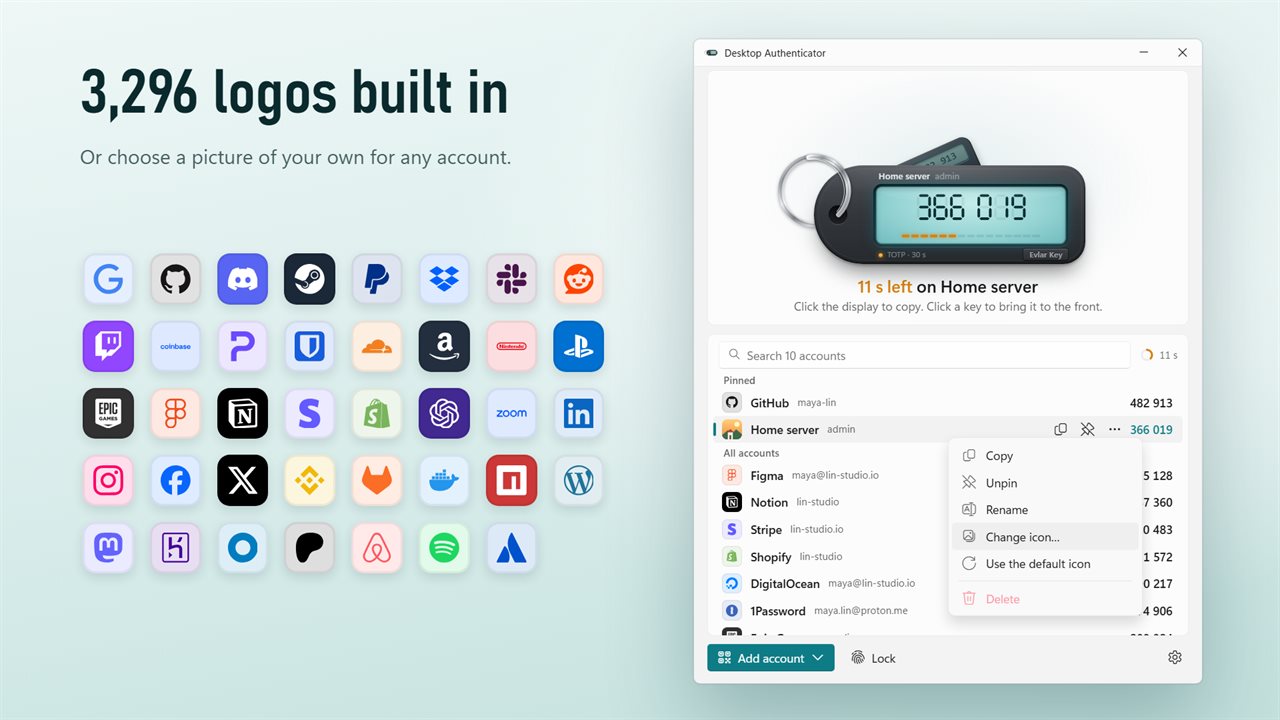
Time-based codes with SHA-1, SHA-256 or SHA-512, 6 to 8 digits, counter-based codes and Steam Guard. Logos for 3,296 services are built in, from Google and Microsoft to GitHub and Steam. When a setup code names its own logo, the app uses that, or you can choose a picture of your own.
No account, no sign-in, no cloud. Dark by default, with a light theme or one that follows Windows. It waits in the notification area and can start with Windows.
Features
- Press Ctrl+Alt+Q anywhere, type a name, and Enter copies the code
- Shift+Enter types the code straight into the field you were in
- A desktop widget: your key on the desktop with its code, click the display to copy
- Keep the widget code hidden until you hover over it, or until Windows Hello, so people nearby cannot read it
- Import every account from Google Authenticator: show its export QR code on your PC screen and scan it
- Scan a setup QR code right off your screen, on any monitor, even a light code on a dark page
- Or paste a setup link or a Google Authenticator export link, or type the key by hand
- Locks with Windows Hello when it starts and after the PC sits idle, or with an app passcode on PCs without Hello
- Your accounts are encrypted with your Windows account and stay on this PC
- A copied code is cleared from the clipboard after 15 seconds to 2 minutes, and kept out of clipboard history
- Time-based codes with SHA-1, SHA-256 or SHA-512, counter-based codes and Steam Guard
- See the next code in the last 5 seconds, so you never type one that is about to expire
- Pin the accounts you use most and switch between them in one click
- Logos for 3,296 services built in, from Google and Microsoft to GitHub and Steam
- Uses the logo a setup code names, or a picture of your own for any account
- Waits in the notification area and can start with Windows
- No account, no cloud. Dark by default, with a light theme or one that follows Windows
Details
- Works on
- Windows 10 (1809 or later) and Windows 11
- Download
- About 5.1 MB
- Version
- 1.0.1, updated October 2026
- First released
- October 2026
- Price
- $2.99 once. No subscription.
- Category
- Security
Questions
Anything else? Ask us
Which versions of Windows does it run on?
Windows 10 (version 1809 or later) and Windows 11.
Is it a subscription?
No. Desktop Authenticator is a one-time purchase of $2.99, and updates are included.
How do I get it?
EvlarSoft apps are moving to direct downloads from this site. Ask to be notified and we will email you as soon as Desktop Authenticator is ready to download.