Click Indicator
Nobody watching a recording can see you click. Mouse Click Indicator marks it — a ripple, a circle or a ring at the point of every click, in a colour that says which button it was. Left, right, middle and the side pair each get their own, so a right-click never looks like a left one. A ring can follow the pointer all day so it is never lost on a busy desk, and one shortcut turns the lot off.
Show every click, so a recording can be followed.
See it in action
About Click Indicator
A click makes a sound at your desk and nothing at all on a recording. Whoever is watching sees the result and never sees the cause.
Mouse Click Indicator draws the click.
Every click, marked
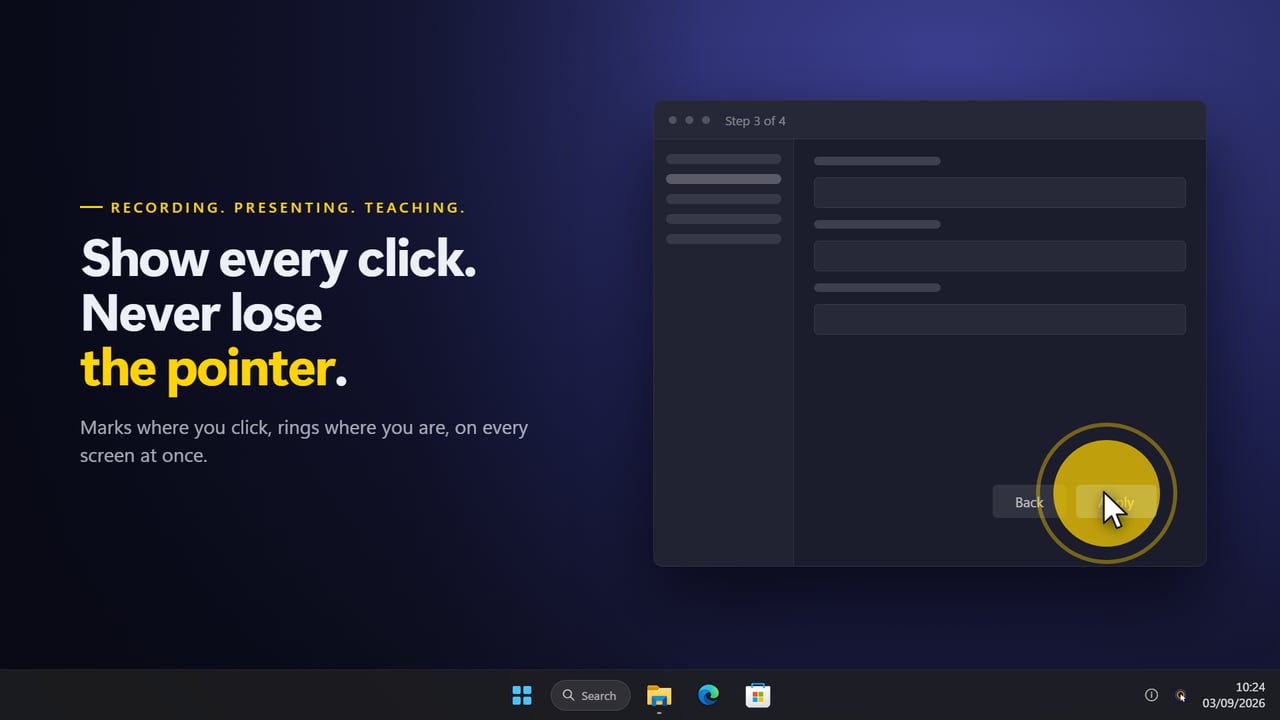
A ripple that fades, a filled circle, or a hollow ring — at the exact point of the click, on whichever screen it happened on. Pick the size, from a discreet 30 pixels to an unmissable 240, and how long it stays, from 150 milliseconds to a second and a half.
Hold the button down and drag, and the mark comes with you rather than sitting where the drag started.
Which button it was
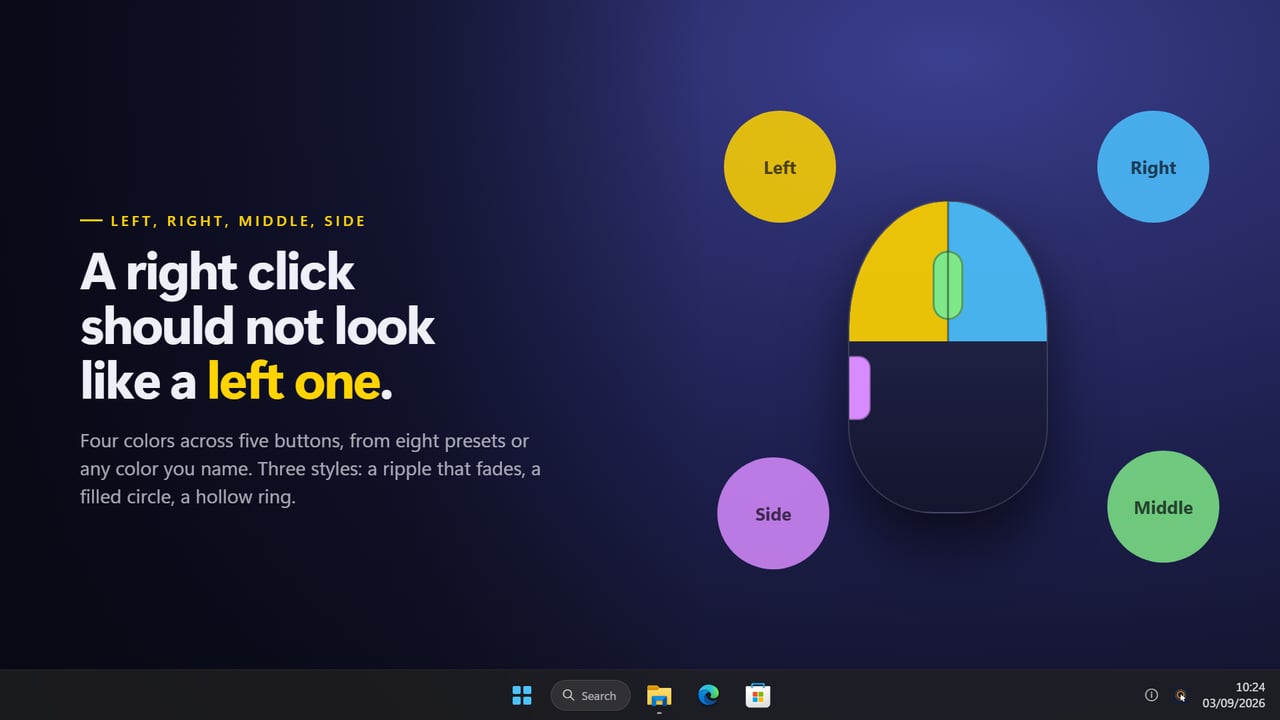
Left, right, middle and the two side buttons each carry their own colour, from eight presets or any colour you care to name. A right-click stops looking like a left one, which is the whole difficulty with showing somebody a context menu. The mark can write the button's name inside itself as well, for a tutorial where the colour alone is not enough.
Never lose the pointer
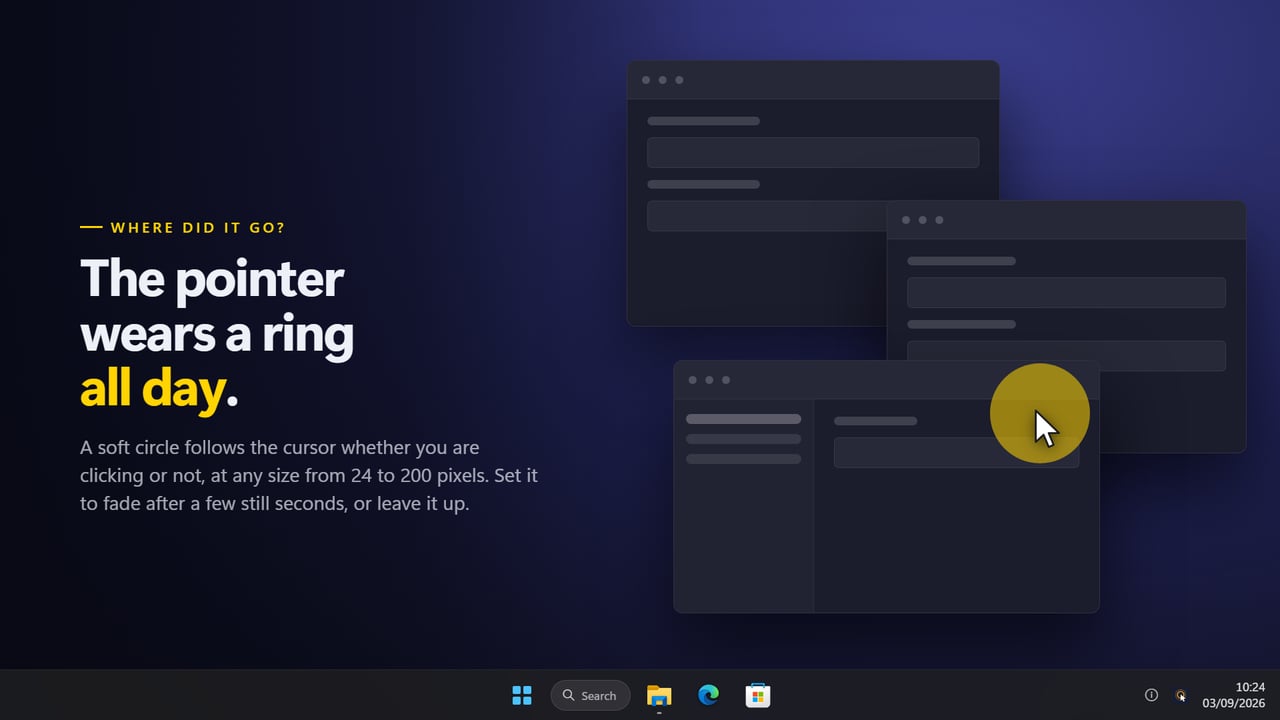
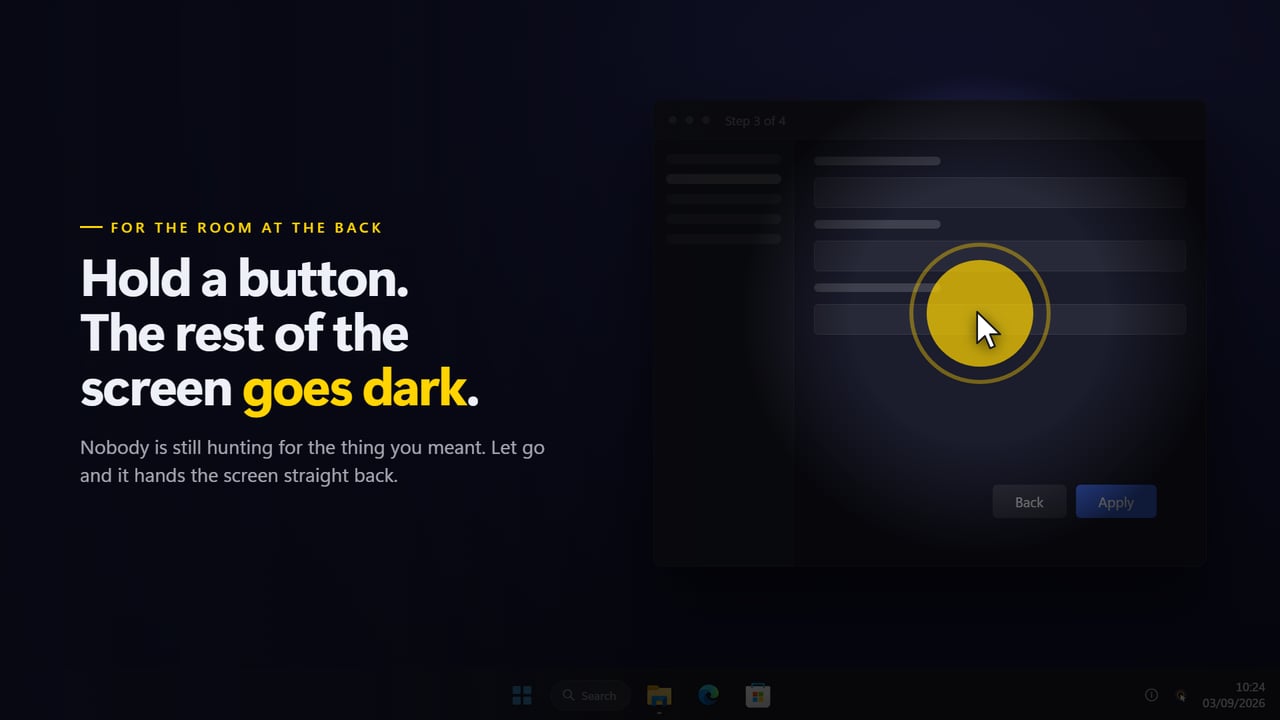
A soft ring can follow the cursor all the time, clicking or not, and fade out on its own once you have stopped moving. On a wide monitor, or three of them, that is the difference between an audience following you and an audience hunting for you. Turn on the spotlight and everything but the pointer dims, which is a lot to ask of a recording and nothing at all to ask of this.
It stays out of the way
The marks are drawn straight through: they never take a click away from the window underneath, never appear in a screenshot you take of a window, and never steal focus. Plug in another monitor and it is covered too, with no restart.
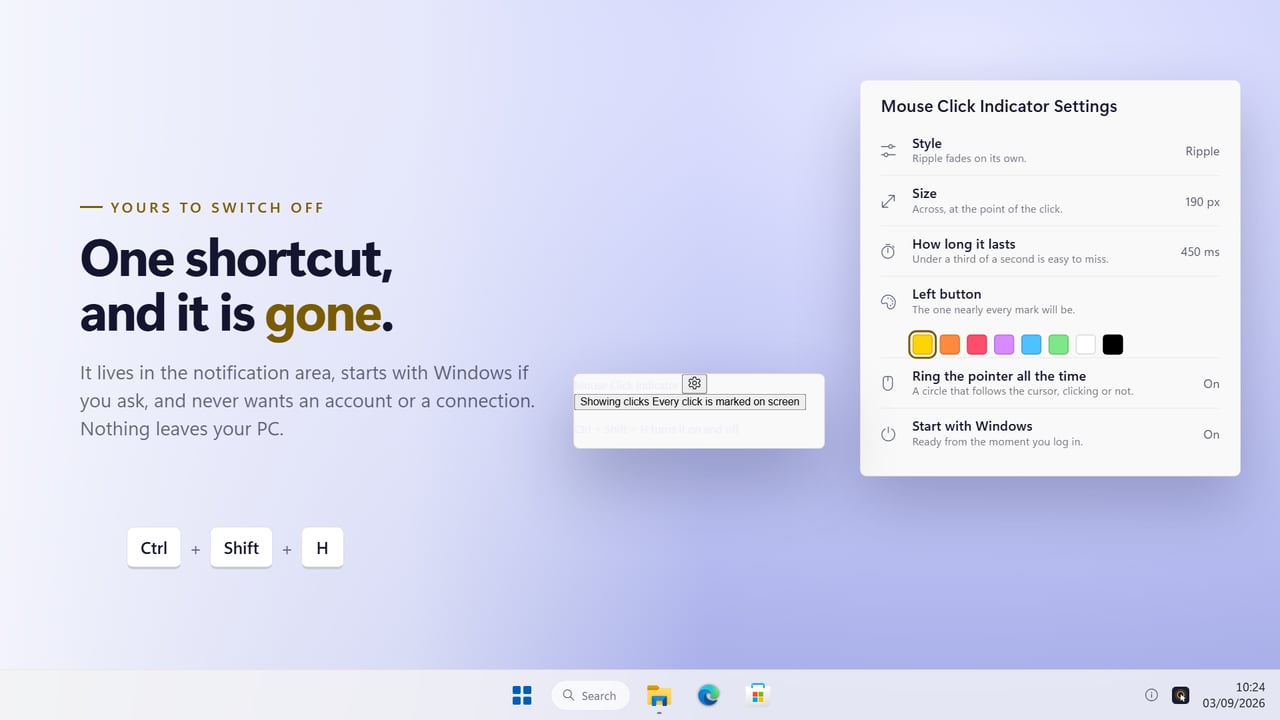
One keyboard shortcut turns everything on and off, so it is on for the recording and gone the moment you stop.
Where it lives
In the notification area, with no window anywhere. The settings follow your light or dark theme and match the rest of Windows 11. It can start with Windows, remembers every choice, and works with no connection at all — there is no account and nothing is uploaded.
Features
- Marks every click on screen, so a recording or a demonstration can be followed
- Left, right, middle and both side buttons — each with its own colour
- Three styles: a ripple that fades, a filled circle, a hollow ring
- Eight colour presets, or any colour you name
- Size from 30 to 240 pixels, and how long a mark lasts from 150 to 1500 ms
- A ring that follows the pointer all the time, whether you are clicking or not
- The ring can fade out on its own once the pointer has been still for a moment
- Dim the rest of the screen around the pointer, so a spotlight follows you
- Write the button's name — Left, Right, Middle, Side — inside the mark
- The mark follows a drag, instead of being left behind where the button went down
- Works on every screen at once, including a monitor plugged in later
- Marks are drawn through — they never take a click away from the app underneath
- One keyboard shortcut turns everything on and off
- Starts with Windows, and lives in the notification area with no window to close
- Works offline. No account, and nothing is uploaded
Details
- Works on
- Windows 10 (1809 or later) and Windows 11
- Download
- About 3.7 MB
- Version
- 2.0.3, updated October 2026
- First released
- May 2023
- Price
- One-time purchase. No subscription.
- Category
- Utilities & tools
What's new in 2.0.3
- New: the mark follows a drag instead of staying where the button went down
- New: a ring that follows the pointer all the time, for finding the cursor on a wide desk
- New: how long a mark lasts is yours to set, from 150 to 1500 ms
- New: a spotlight that dims everything but the pointer
- New: the button's name can be written inside the mark
- New: the side buttons are marked too, so all five buttons are covered
- A monitor plugged in while the app is running is covered without a restart
- Redesigned settings and tray panel that match Windows 11 and follow the light and dark themes
- One keyboard shortcut for the whole app
Questions
Anything else? Ask us
Which versions of Windows does it run on?
Windows 10 (version 1809 or later) and Windows 11.
Is it a subscription?
No. Click Indicator is a one-time purchase, and updates are included.
How do I get it?
EvlarSoft apps are moving to direct downloads from this site. Ask to be notified and we will email you as soon as Click Indicator is ready to download.