Simple Elegant Timer
An elegant countdown timer that gets the job done with simplicity as a priority. Big, clear numbers, Reset and Start, an alarm at zero — and real hours, not a heap of minutes. Pin it over your work for a study or focus session.
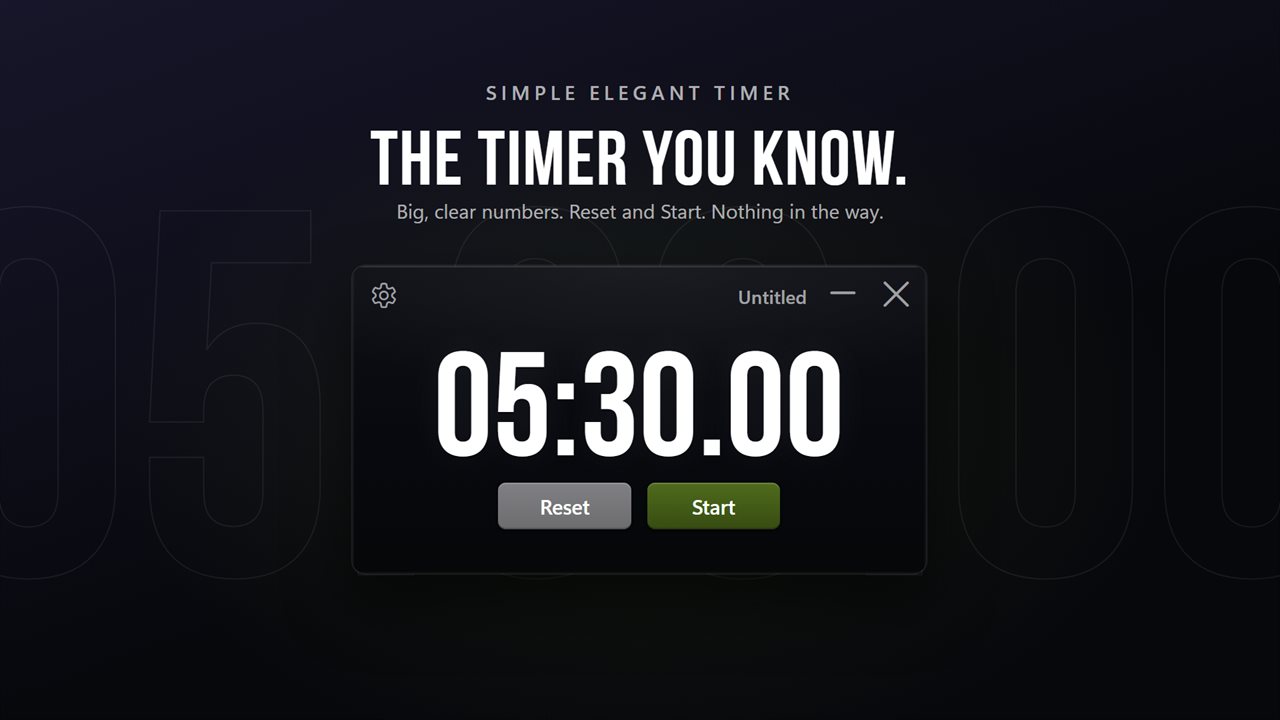
The timer you know: big, clear numerals with Reset and Start underneath.
See it in action
About Simple Elegant Timer
An elegant countdown timer that gets the job done with simplicity as a priority.
Set it, Start it
The whole app is one small black plate: the time in big, clear numerals, with Reset and Start underneath. Press Start and it counts down; press Stop and it holds what is left. Reset takes it back to the time you set — and if it is running, starts it again from the top.
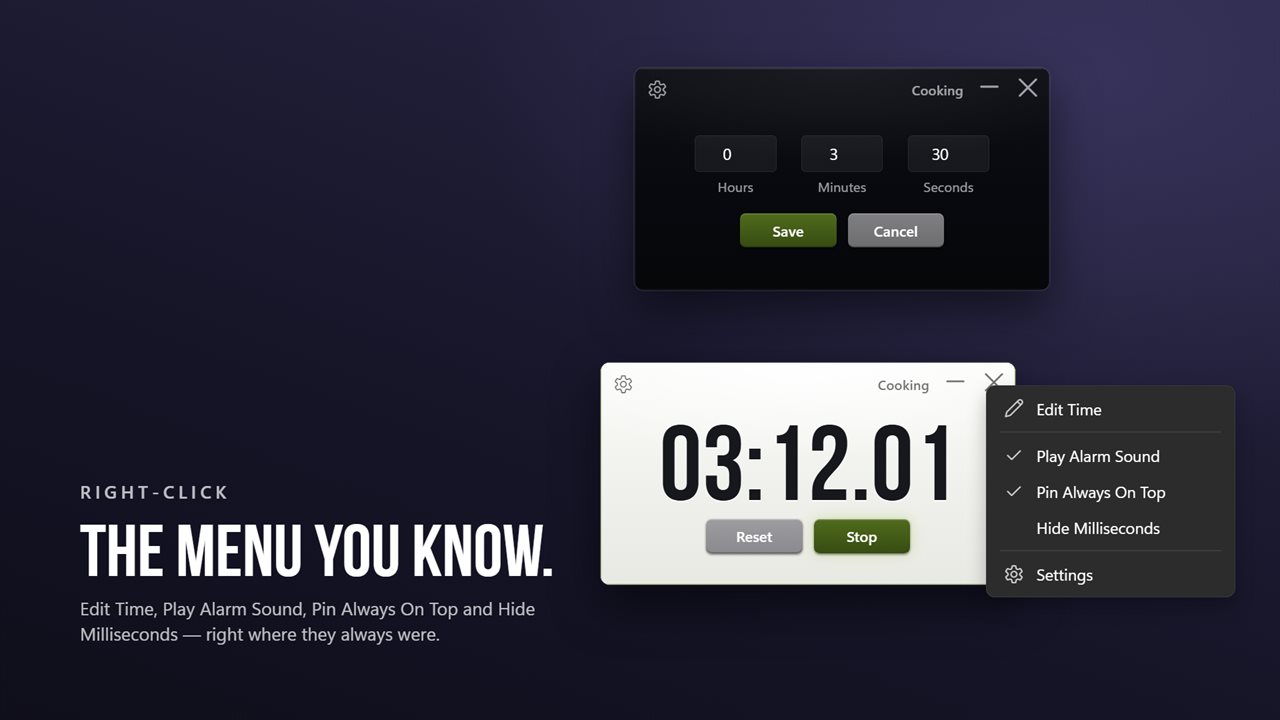
Right-click the timer and choose Edit Time to type hours, minutes and seconds, then Save. Or scroll over the numbers to add or take away a minute.
Label it
Click Untitled in the corner and name what you are timing — up to 15 characters. The label and the time are both remembered for next time.
For study and focus sessions
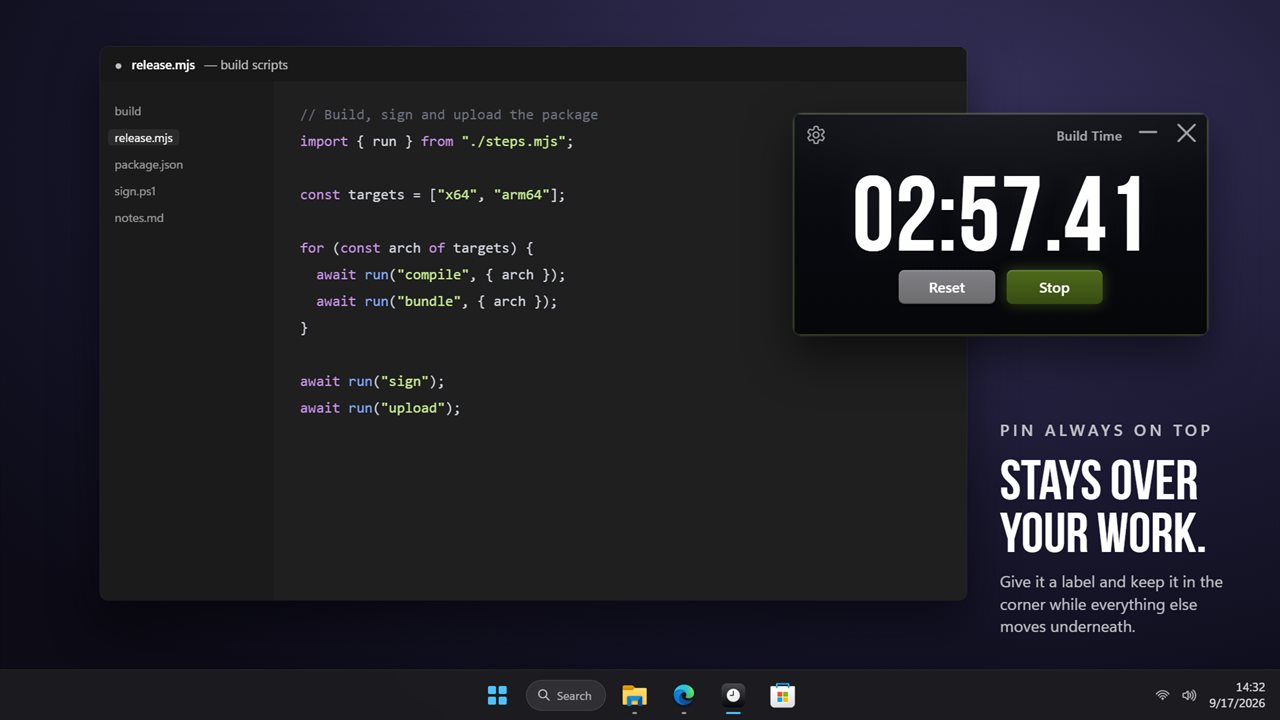
Set a study block, pin the timer always on top and it sits over your notes while you work. Label it Reading, Revision or Deep work, and at zero the alarm brings it back to the front, even from behind your other windows.
It tells you when it is done
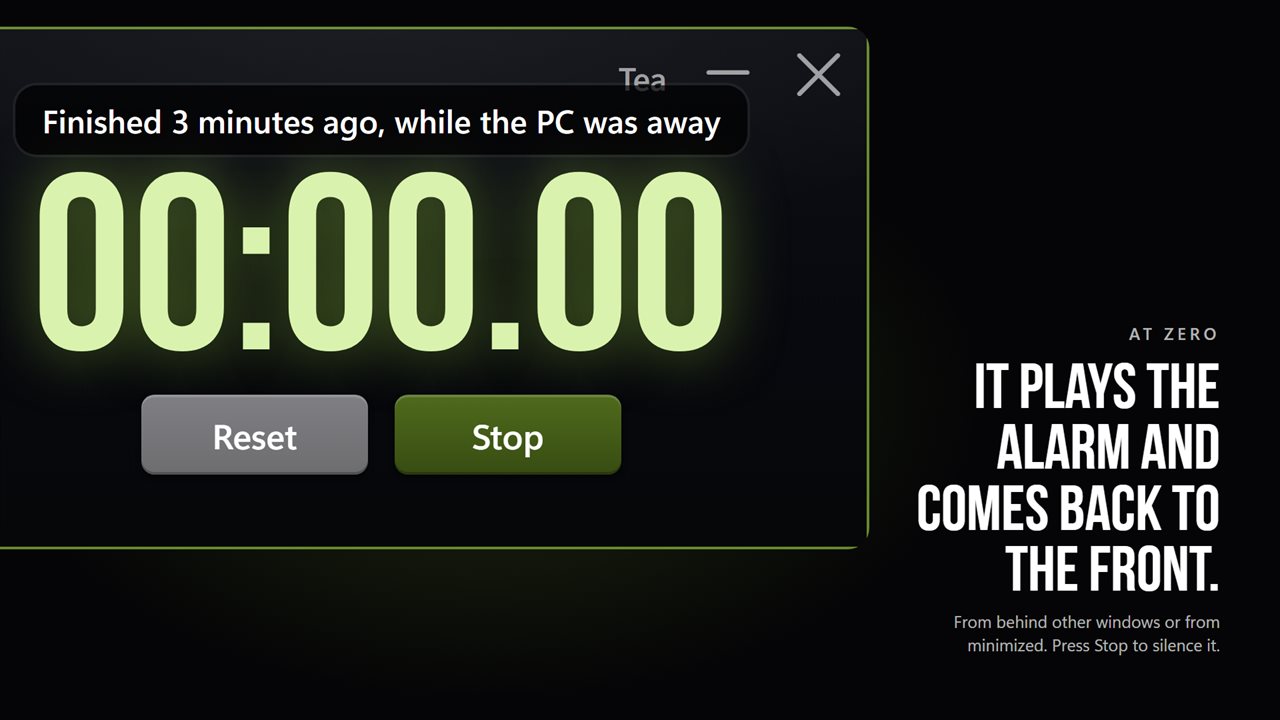
At zero it plays an alarm sound and brings its window back to the front — from behind other windows, from minimized, from wherever you left it. Press Stop to silence it and it is ready for another run.
If your PC slept through the end, it says how long ago the time actually ran out rather than handing you a number that means nothing.
Real hours
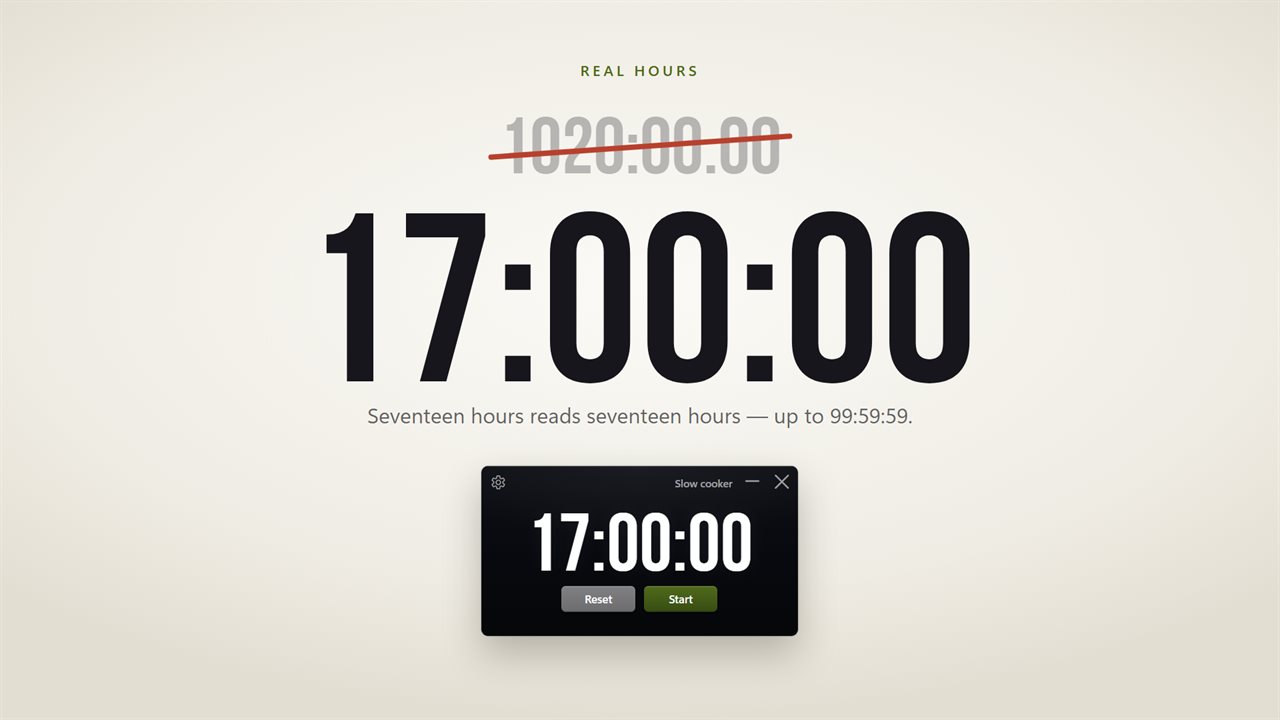
Seventeen hours reads 17:00:00. The previous version printed 1020:00.00, because it counted everything in minutes. Under an hour it shows hundredths of a second, unless you hide milliseconds.
The right-click menu you know
Edit Time, Play Alarm Sound, Pin Always On Top and Hide Milliseconds are all still there, with a gear on the timer for the settings page.
Upgrading from the old version
It looks and works the way it always did, rebuilt for Windows 11. The time you had saved comes across on first run, along with whether you wanted the alarm sound.
No account. No sign-in. Nothing leaves your PC unless you choose to send feedback. No ads.
Features
- Big, clear numerals with Reset and Start right underneath
- Real hours in the readout: 17 hours reads 17:00:00, not 1020 minutes
- Anything from one second to 99 hours, 59 minutes and 59 seconds
- Right-click and choose Edit Time to set hours, minutes and seconds
- Label the timer, up to 15 characters, and it is remembered
- Plays an alarm sound and brings itself back to the front at zero
- Says how long ago it finished if your PC was asleep when it did
- Pin it always on top of your work for a study or focus session
- Hide milliseconds, or keep hundredths of a second under the hour
- Scroll over the numbers to add or take away a minute
- Space starts and stops, Esc resets
- Remembers the last time you set
- No account, no network use except feedback you choose to send, no ads
Details
- Works on
- Windows 10 (1809 or later) and Windows 11
- Download
- About 2.6 MB
- Version
- 2.0.4, updated October 2026
- First released
- October 2022
- Price
- $2.49 once. No subscription.
- Category
- Utilities & tools
What's new in 2.0.4
- Rebuilt for Windows 11, with the same timer, buttons and right-click menu
- Fixed: the readout now has an hours field, so 17 hours reads 17:00:00 instead of 1020:00.00
- Fixed: minutes and seconds stop at 59; the old boxes accepted 60
- Fixed: Hide Milliseconds and Pin Always On Top are now saved
- Fixed: repeated alarms used to stack overlapping copies of the sound
- New: the label is remembered
- New: says how long ago the timer finished if your PC was asleep when it did
- New: at zero it comes back to the front even with the sound turned off
- New: settings page, light and dark window frame, start with Windows
- Your saved time and your alarm setting carry across from the old version
Questions
Anything else? Ask us
Which versions of Windows does it run on?
Windows 10 (version 1809 or later) and Windows 11.
Is it a subscription?
No. Simple Elegant Timer is a one-time purchase of $2.49, and updates are included.
How do I get it?
EvlarSoft apps are moving to direct downloads from this site. Ask to be notified and we will email you as soon as Simple Elegant Timer is ready to download.