Smart Display Color Tint
Two monitors, same desk, and one is yellow next to the other's blue. No amount of fiddling with either panel's own menu fixes it. Smart Display Color Tint gives every display its own tint — warm to pull a cold panel back, cool to pull a warm one back — set from the tray in a few seconds. Anything you do not set keeps the shared tint, screens are named the way Windows names them, and it works on monitors with no colour controls at all.
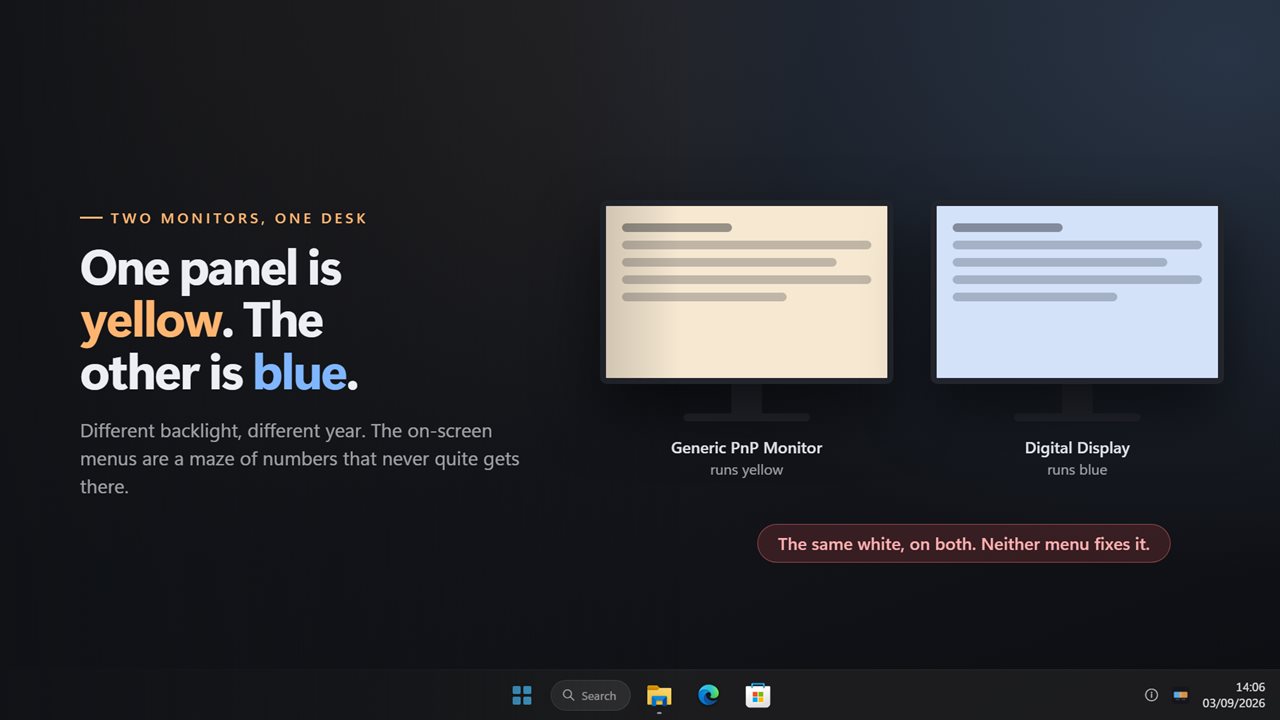
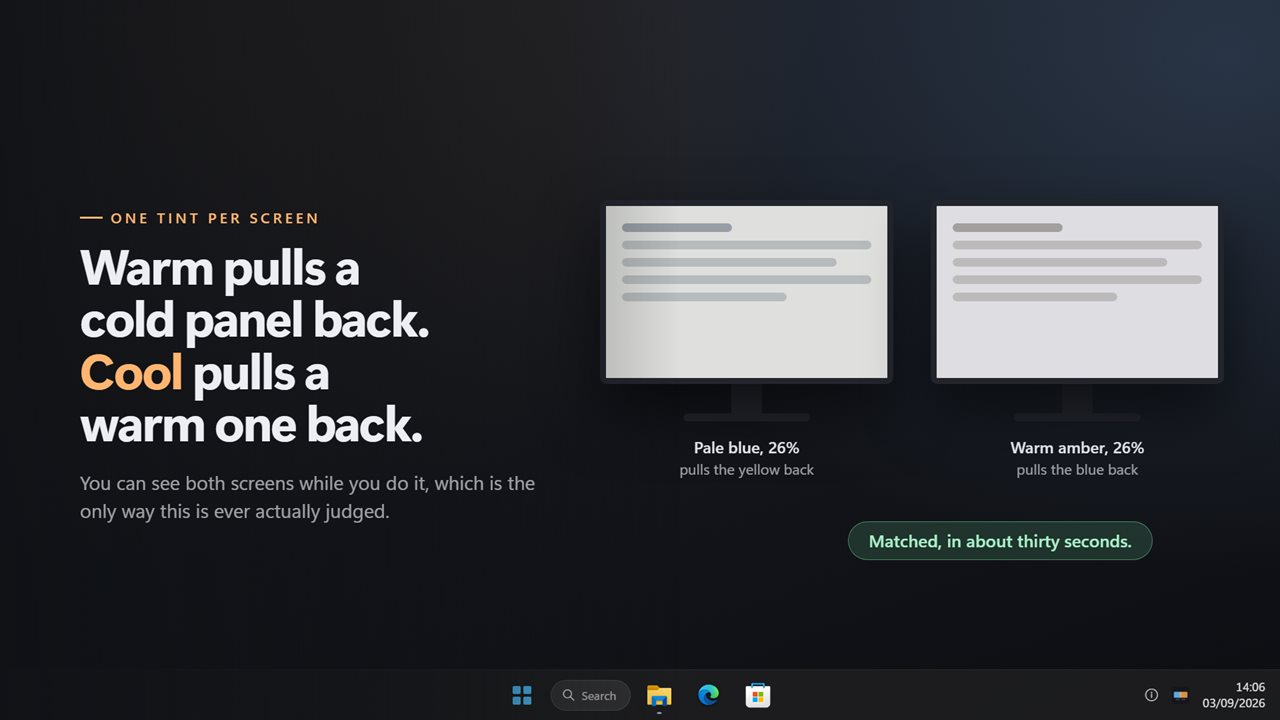
One monitor yellow, one blue. Tint them until they match.
See it in action
About Smart Display Color Tint
Buy a second monitor and it will not match the first. Different panel, different backlight, different year — one reads yellow beside the other's blue, and the two on-screen menus that are supposed to fix it are a maze of numbers that never quite gets there.
This fixes it from Windows instead.
One tint per screen
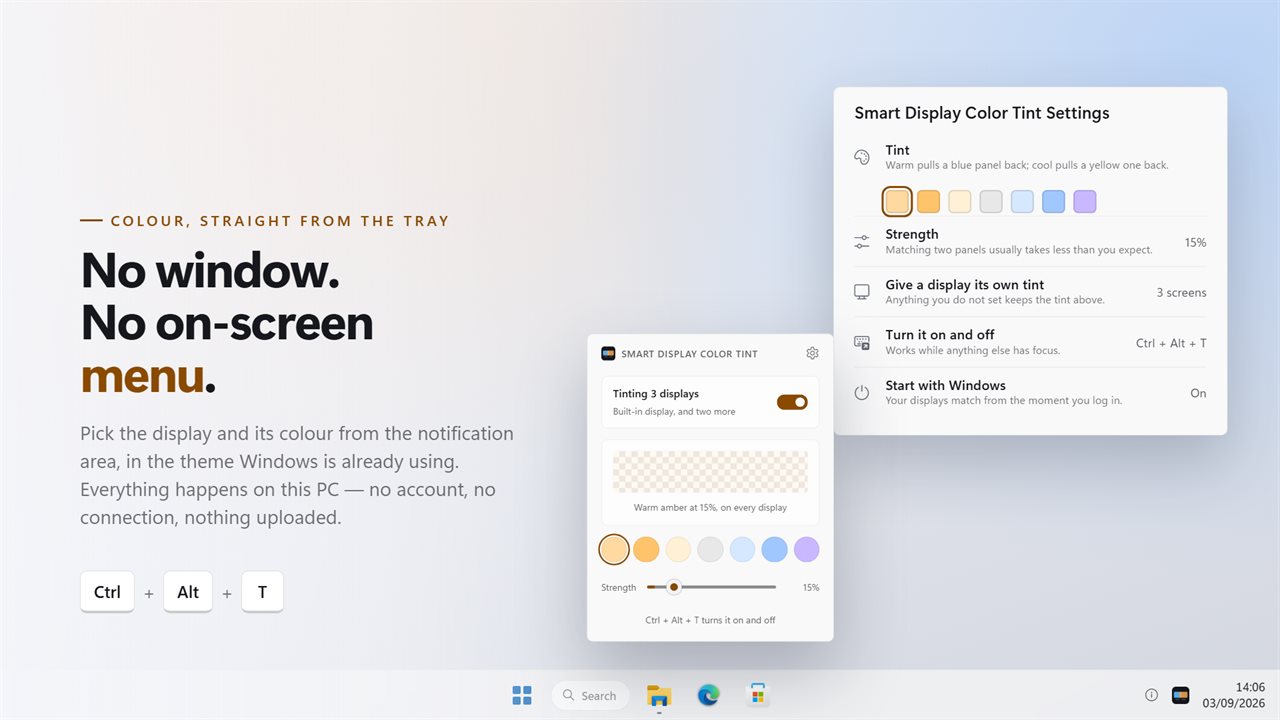
Every display gets its own colour and its own strength. Warm pulls a cold panel back towards the other; cool pulls a warm one back. Open the tray panel, pick the display, pick the colour, and watch the two of them meet — you can see both screens while you are doing it, which is the only way this is ever actually judged.
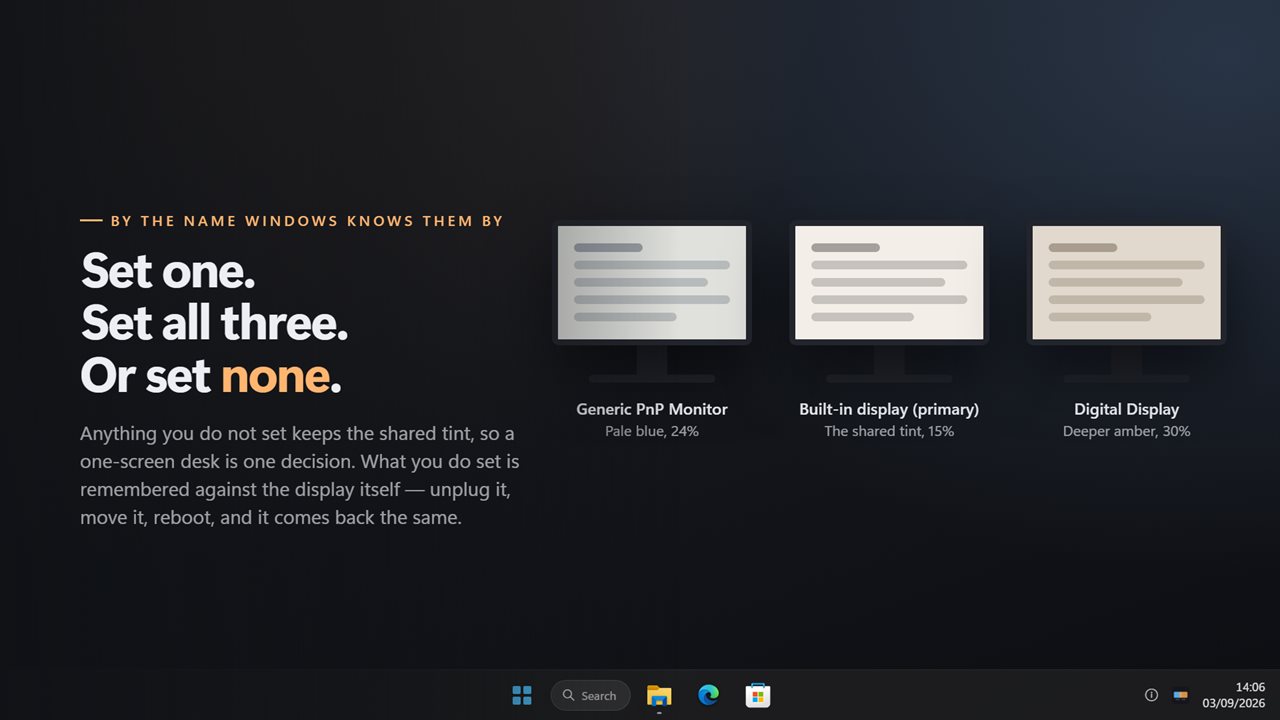
Anything you do not set keeps the shared tint above it, so a one-screen desk is one decision and not a chore.
Screens by name
Displays are listed by the name Windows knows them by, with the primary one marked, so two monitors of the same model are told apart. What you set is remembered against the display itself rather than its position in a list — unplug it, move it to the other side of the desk, reboot, and it comes back with its own tint.
A screen connected later is tinted like the rest, with no restart.
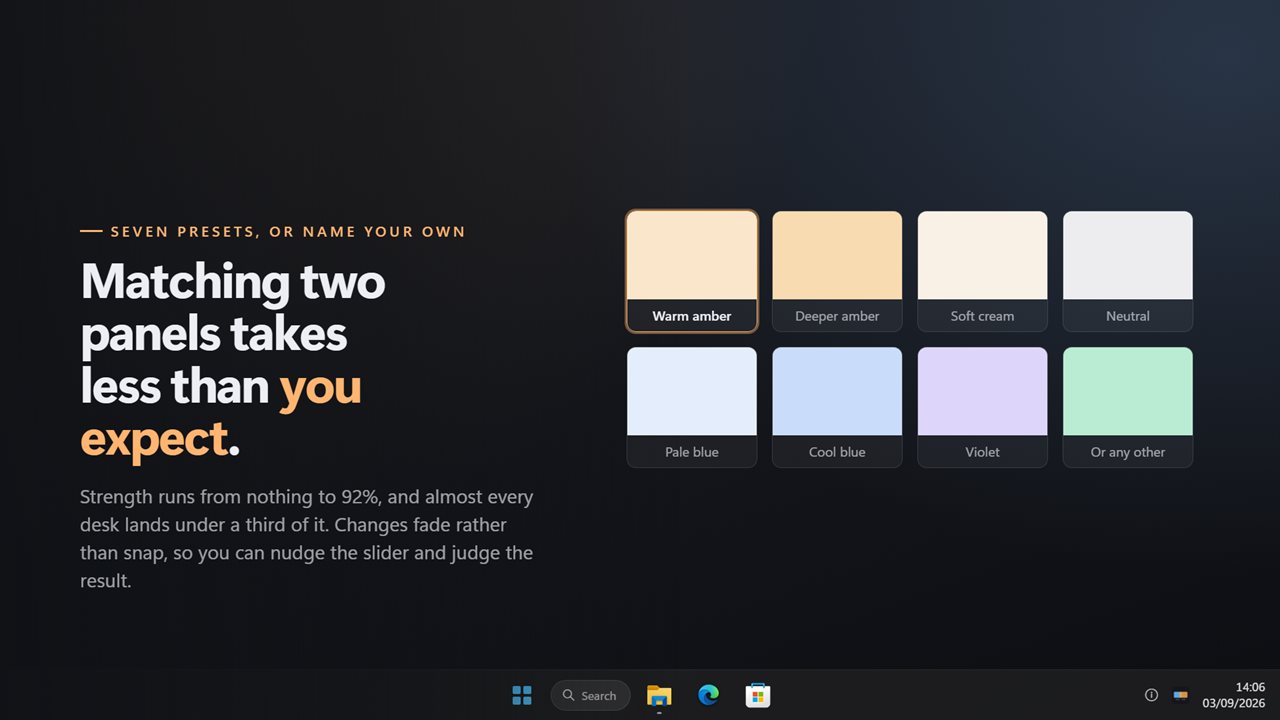
Seven colours, or any other
Warm amber, deeper amber, soft cream, neutral, pale blue, a stronger blue, and a violet — or name any colour at all. Strength runs from nothing up to 92%, though matching two panels almost always takes less than you would guess. Changes fade in rather than snapping, so you can nudge the slider and judge the result instead of being startled by it.
No cooperation required
It lays the colour over the display rather than asking the display to change it, so it works on hardware with no colour controls, on a laptop panel, and on anything plugged into a machine Windows will not offer a setting for. The tint is drawn straight through: it never takes a click away from the window underneath and never steals focus.
Where it lives
In the notification area, with no window anywhere. One keyboard shortcut turns the lot on and off while anything else has focus. It can start with Windows, remembers every screen's colour, and works with no connection at all — there is no account and nothing is uploaded.
Features
- Give each monitor its own tint, so two panels that never matched finally do
- Warm pulls a blue screen back; cool pulls a yellow one back
- Seven presets from warm amber through neutral to cool blue and violet, or any colour you name
- Strength from nothing to 92%, and matching two panels usually takes less than you expect
- Screens are listed by the name Windows knows them by, so two of the same model are told apart
- Anything you do not set keeps the shared tint, so one screen is nothing to think about
- Per-screen settings key on the display itself, so they survive a reboot and a rearranged desk
- Works on monitors with no colour controls, because it never asks the display for anything
- A screen plugged in later is tinted like the rest, without a restart
- Colour changes fade rather than snap
- Pick a display and its colour straight from the tray, without opening settings
- One keyboard shortcut turns it on and off. Starts with Windows. Works offline
Details
- Works on
- Windows 10 (1809 or later) and Windows 11
- Download
- About 2.5 MB
- Version
- 2.0.8, updated October 2026
- First released
- June 2022
- Price
- $2.99 once. No subscription.
- Category
- Health & fitness
What's new in 2.0.8
- New: every display gets its own tint and its own strength. The old version tinted them all the same, which is no use on the desk this is for
- New: displays are listed by the name Windows knows them by, and their settings key on the display rather than its place in a list, so they survive a reboot and a rearranged desk
- New: pick a display and its colour straight from the tray
- New: colour changes fade instead of snapping
- A monitor plugged in while the app is running is tinted too, without a restart
- Your old colour and strength carry over as the shared tint, which is exactly what you already had
- One keyboard shortcut for the whole app, working from anywhere
- Redesigned settings and tray panel that match Windows 11 and follow the light and dark themes
Questions
Anything else? Ask us
Which versions of Windows does it run on?
Windows 10 (version 1809 or later) and Windows 11.
Is it a subscription?
No. Smart Display Color Tint is a one-time purchase of $2.99, and updates are included.
How do I get it?
EvlarSoft apps are moving to direct downloads from this site. Ask to be notified and we will email you as soon as Smart Display Color Tint is ready to download.