Volume Limiter
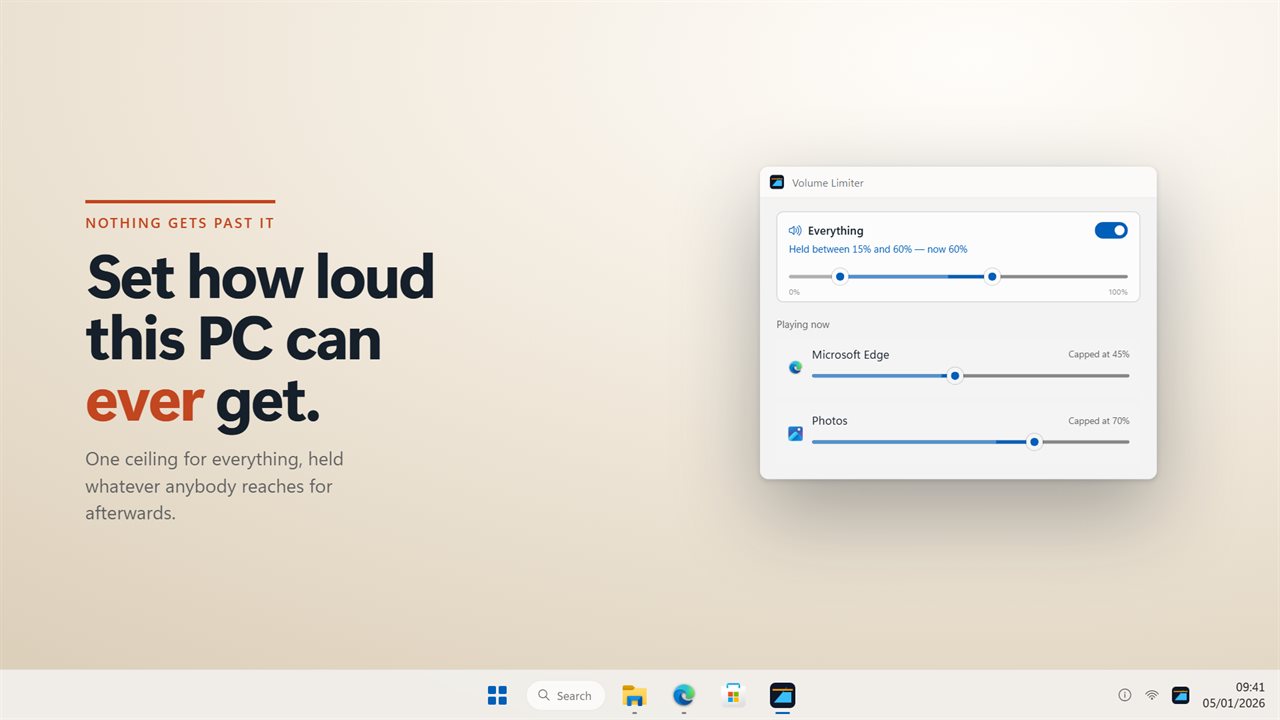
Puts a hard limit on how loud your PC can play, for the whole system and for each app, and pulls back the sudden jumps a volume slider never sees.
A safe range, not just a maximum
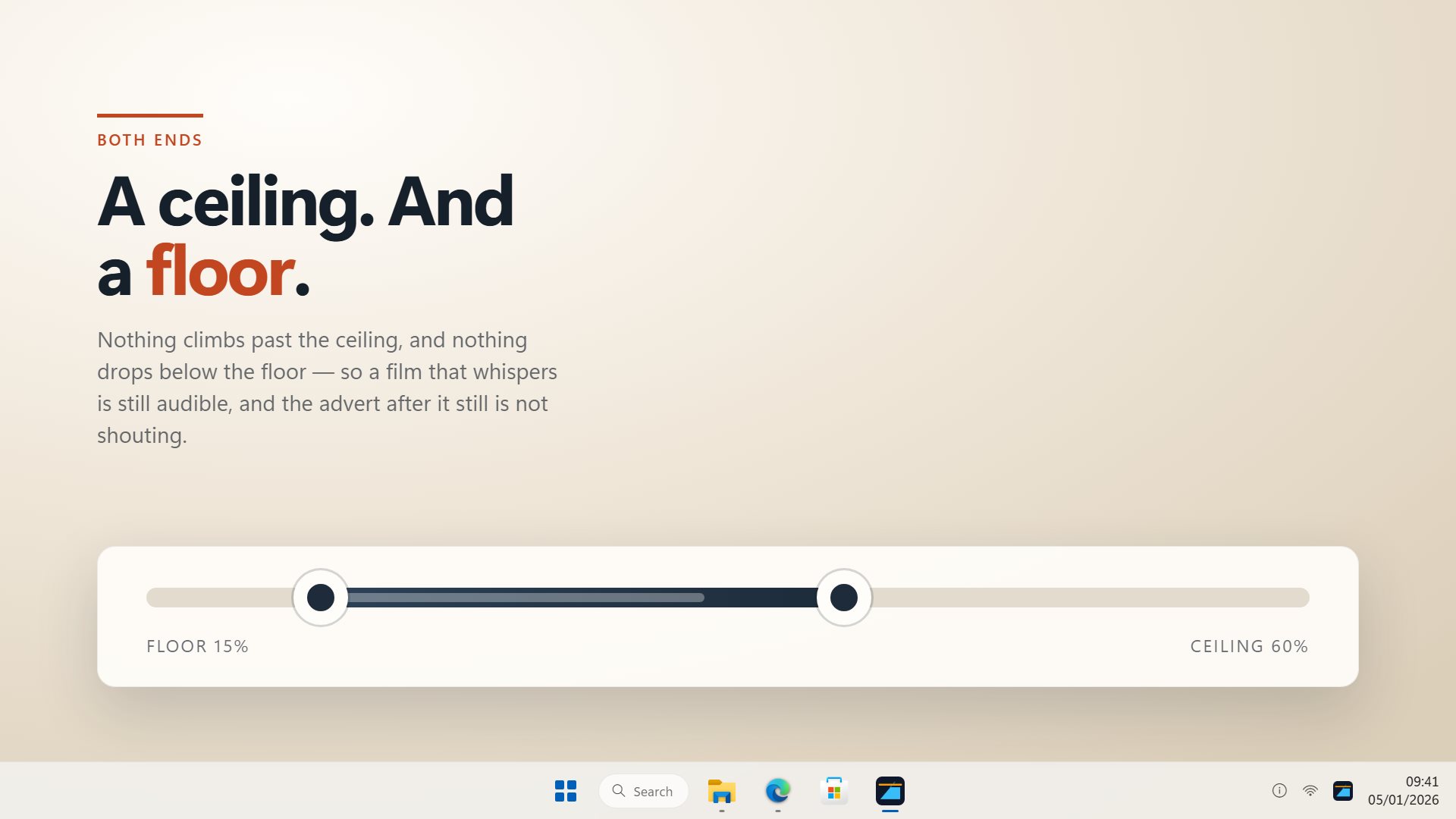
Above the ceiling the system volume is pulled back down. Below the floor it is brought back up, so quiet scenes stay audible.
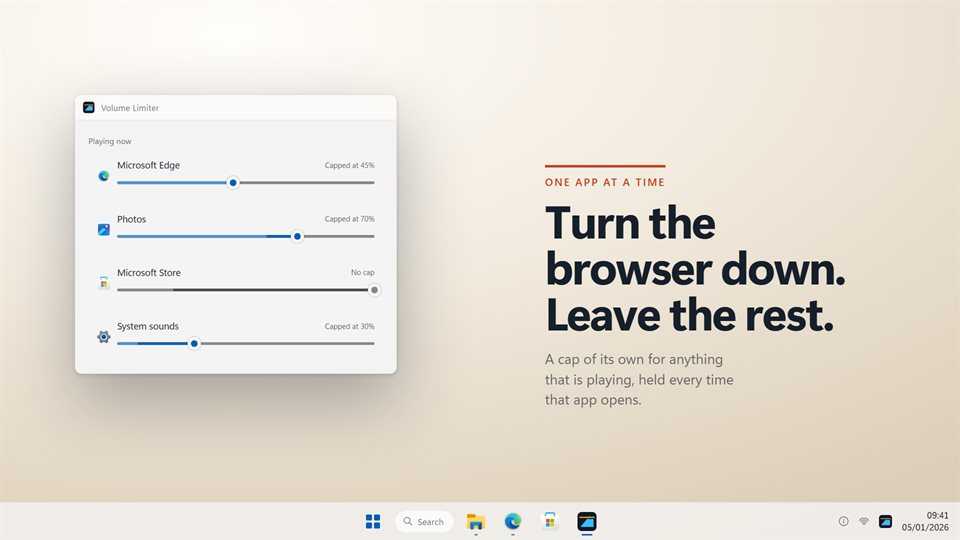
The browser quieter, the music untouched
Each app that is playing gets its own cap, and the cap is applied again the next time that app opens.
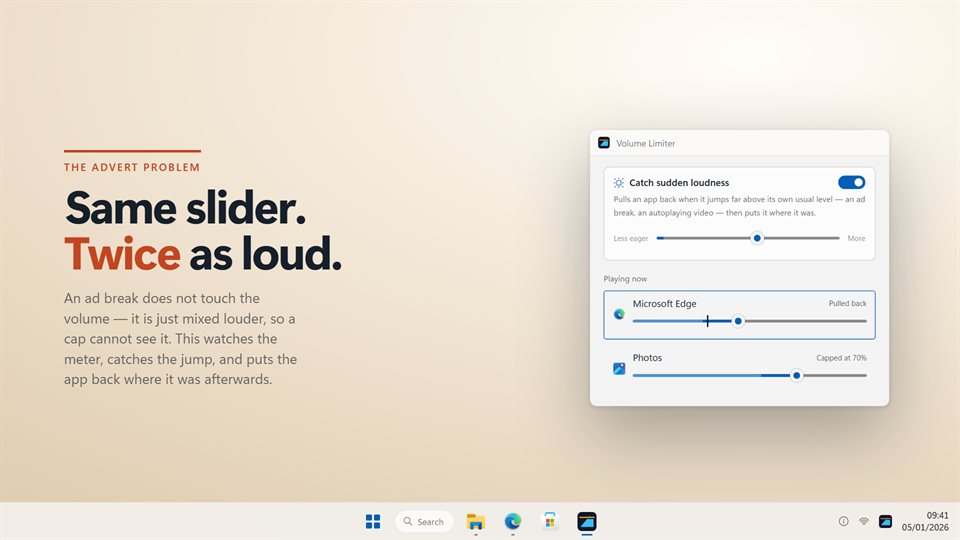
Catches the loud advert
The loudness guard reads each app's level and turns it down when it jumps well above its usual volume, then puts it back.
See it in action
Screenshots from the app on Windows 11.
Why a volume slider is not enough
Capping the Windows volume slider stops anyone turning it up past a point, and Volume Limiter does that. But the slider is only one part of loudness. An app playing at full scale under an 80% slider is as loud as 80% gets, and an advert mixed twice as loud as the show before it arrives without the slider moving at all.
So the limits work at three levels. The system ceiling and floor hold the slider in a range. A per-app cap holds one program below its own limit. And the loudness guard watches each app's actual output: when it rises far above that app's normal level, the app is turned down, and when the loud part has passed it is turned back up.
The guard works by turning the whole app down, not by reshaping the sound, and it reacts in about a tenth of a second, so the very start of a blast can still get through. Its sensitivity runs from 1 to 10, because what counts as a jump in a film is not the same as in a game.
What people use it for
Protecting young ears
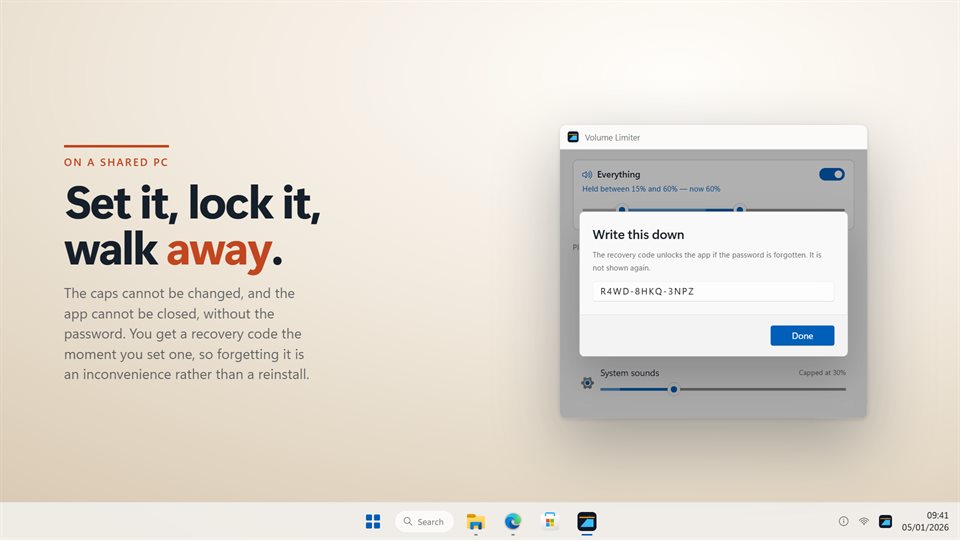
Keeping a child's laptop or a family PC below a safe level, locked so it stays that way.
Late-night films
Holding explosions down and dialogue up so nobody else in the house is woken.
Taming one loud app
Capping a browser, a game or a call app on its own while everything else plays normally.
Details
- Works on
- Windows 10 (1809 or later) and Windows 11
- Download
- About 2.5 MB
- Version
- 2.0.8, updated October 2026
- Price
- $2.99 once. No subscription, no in-app purchasesUS price; the Store shows yours.
- Privacy
- No account, nothing uploaded, works offline
- Category
- Music
What's new in 2.0
- A cap for each app that is playing, remembered for next time
- The loudness guard, for adverts and scenes mixed louder
- Ceiling and floor together on one rail
- The password is stored as a salted hash rather than as text, with a recovery code
Questions
Anything else: [email protected]
Does it change how my audio sounds?
No. It only moves volume levels, the same ones Windows' own volume mixer shows. Nothing is compressed or filtered.
What does locking do?
With a password set, the limits cannot be changed and the app cannot be closed without it. Locking also turns on start with Windows, so the limits are back after a restart.
What if I forget the password?
Use the recovery code shown when you set it. Write it down at that point.
Does it work with the window closed?
Yes. It stays in the notification area and keeps holding every limit.
Does it need the internet or an account?
No. It works offline and nothing is uploaded.