Quick Brightness Adjuster
Set your screen brightness from the notification area, in one click. Quick Brightness Adjuster puts ten brightness steps behind the icon in your tray, and it reaches external monitors over DDC/CI as well as the panel built into a laptop — so it works on a desktop, which the previous version never did. Point it at one display or all of them. For screens that refuse to dim at all, a shade goes over them instead, on the display you chose, and it covers the taskbar with everything else.
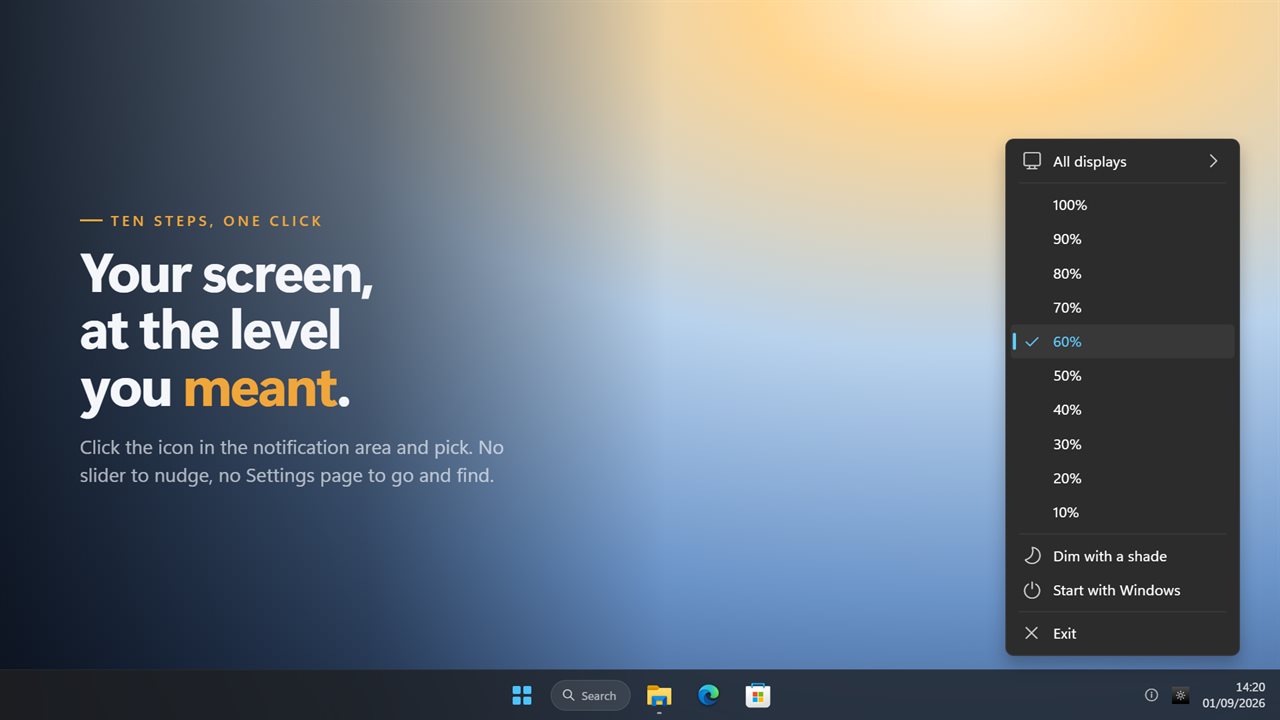
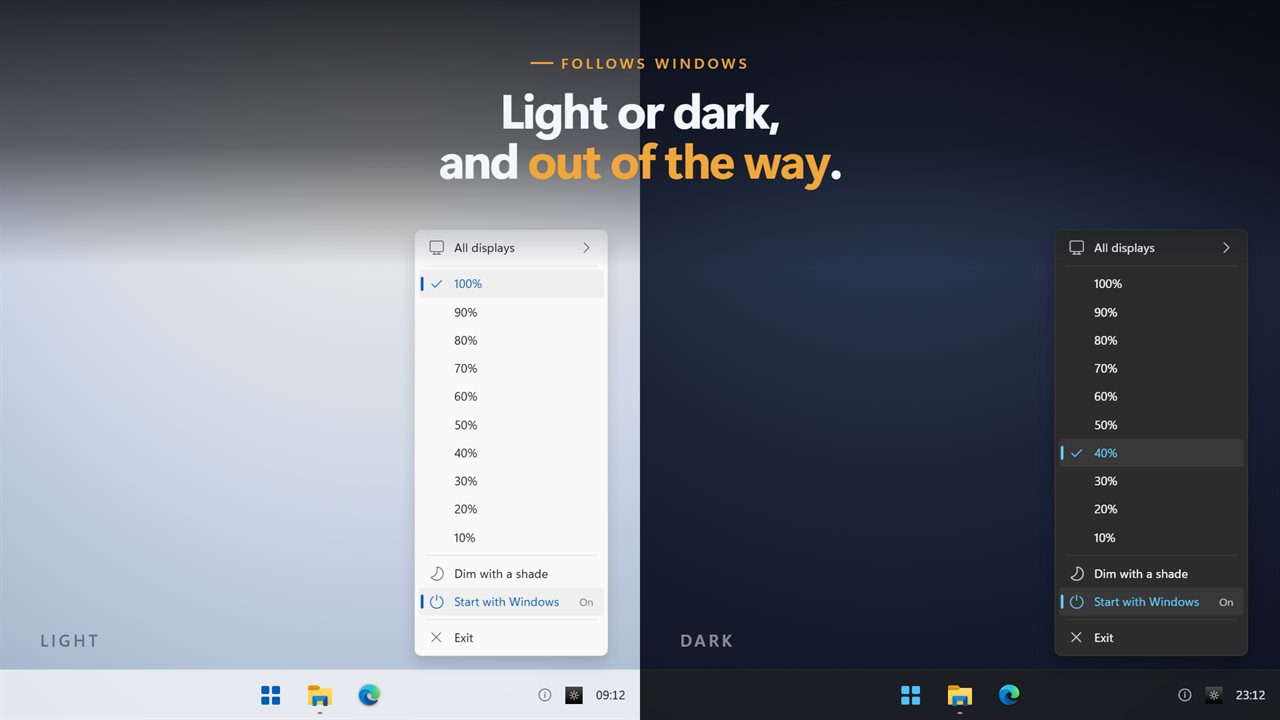
Ten brightness steps, one click away in the notification area.
See it in action
About Quick Brightness Adjuster
Windows keeps screen brightness two or three clicks deep, and on a desktop with external monitors it often does not offer it at all. Quick Brightness Adjuster puts it one click away, in the notification area, for every display you have.
Ten steps, one click
Click the icon and pick: 100% down to 10%. No slider to nudge into place, no Settings page to go and find, and no window to close afterwards. The mark sits on the level your screen is actually at — read back from the display each time the menu opens, so a laptop's own brightness keys cannot leave it lying.
It reaches external monitors
This is the part the old version could not do. It only ever spoke to the panel built into a laptop, so on a desktop the brightness rows did nothing at all and there was no sign of why.
This one talks to external monitors over DDC/CI — the channel the monitor's own on-screen menu uses — and to a built-in panel the way it always did, picking whichever route a display answers on.
One screen, or all of them
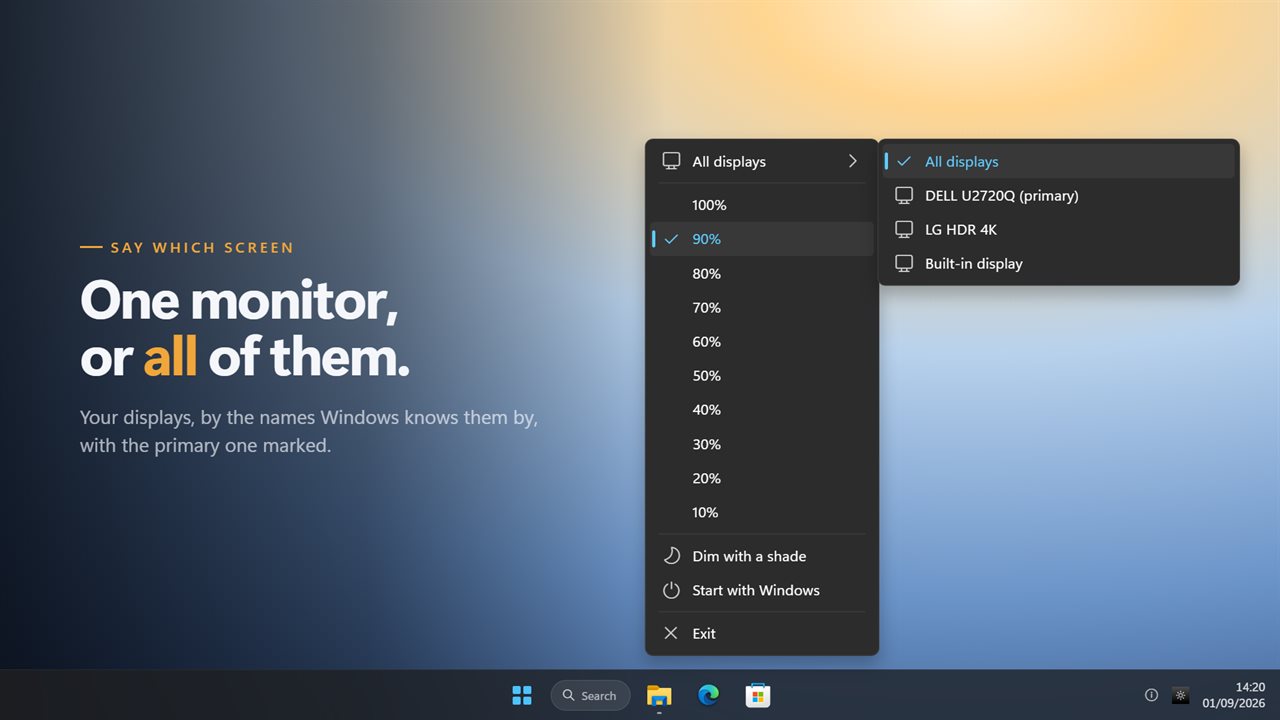
Say which display the levels act on. They are listed by the name Windows knows them by, with the primary one marked, so two monitors of the same model can be told apart.
Some monitors simply refuse
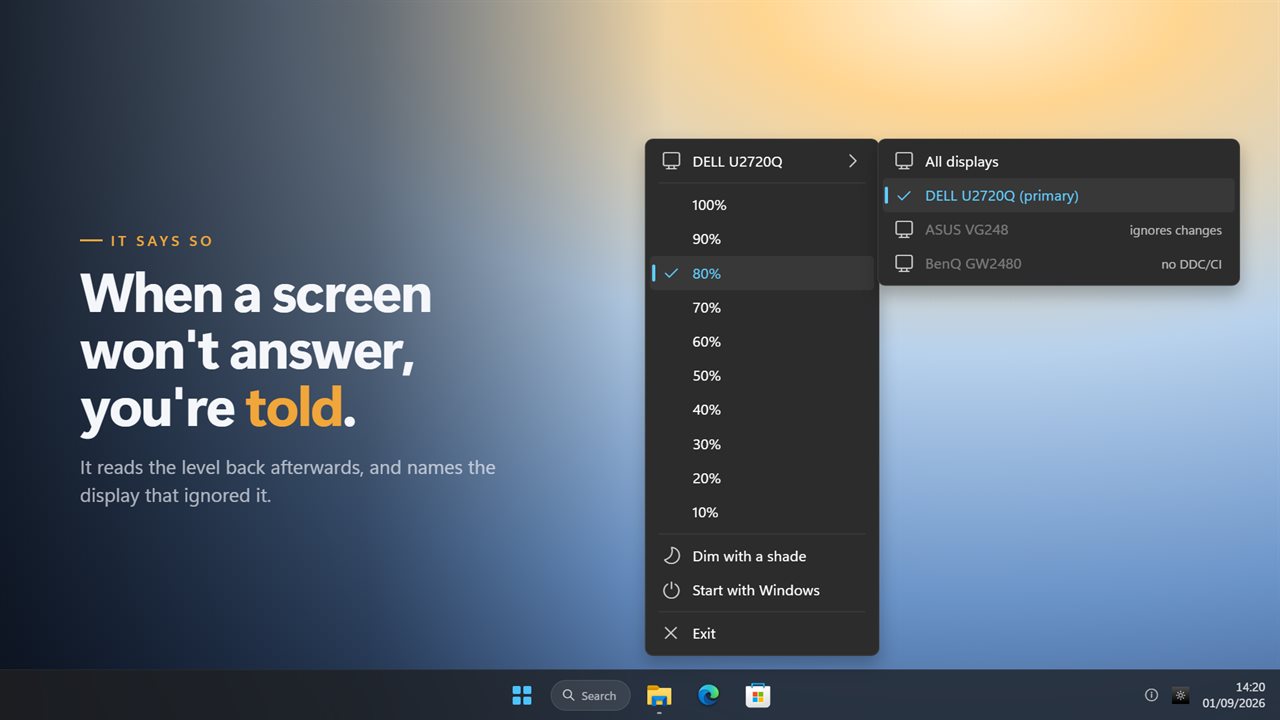
A fair number of displays ignore a brightness command, or accept it and do nothing. When that happens the app says so, and names the display — the old one sent the command into the dark and let you go on clicking.
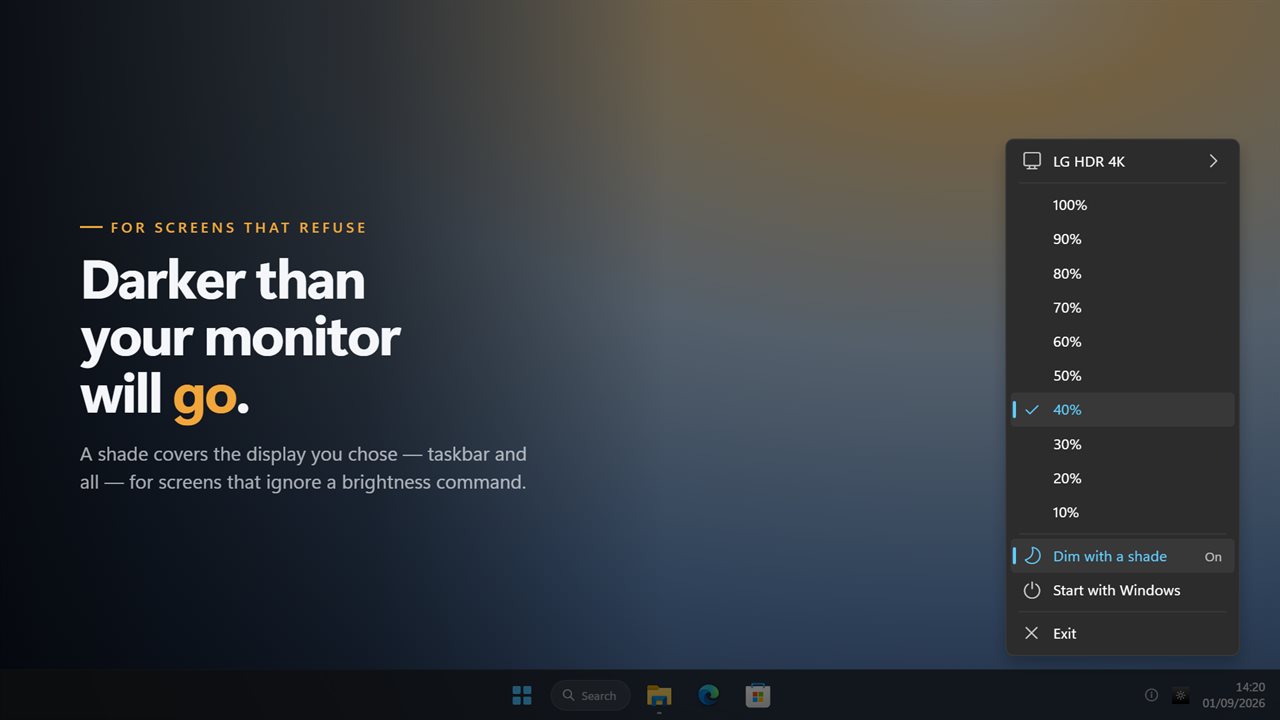
For those screens there is a shade: a black sheet over the display, which takes it darker than its own backlight will go. It covers the taskbar too, rather than stopping at it and leaving a lit strip along the bottom of the screen, and it goes on the display you picked rather than on all of them. At 100% it is not there at all.
Where it lives
In the notification area, with no window anywhere. The menu is drawn to match the rest of Windows 11 rather than handed over as a grey box from 1995, and it follows your light or dark theme.
It can start with Windows. Everything happens on this PC — there is no account, nothing is uploaded, and it works with no connection at all.
Features
- Ten brightness steps in the notification area, from 100% down to 10%
- Dims external monitors over DDC/CI, which the old version could not do at all
- Dims a laptop's built-in panel too, choosing the right route for each display
- Point it at one display or at all of them, by the name Windows knows it by
- Marks the display Windows calls primary, so two identical monitors are told apart
- A shade for screens that refuse to be dimmed, darker than the monitor will go
- The shade covers the taskbar as well, instead of leaving a lit strip along the bottom
- The shade lands on the display you chose, not on every screen at once
- Says when a monitor ignored a change, rather than failing quietly
- Reads the level back from the display, so the mark matches what is on screen
- Starts with Windows
- Follows the Windows light and dark themes
- Works offline. No account, and nothing is uploaded
Details
- Works on
- Windows 10 (1809 or later) and Windows 11
- Download
- About 2.5 MB
- Version
- 2.0.3, updated October 2026
- First released
- July 2022
- Price
- $1.99 once. No subscription.
- Category
- Utilities & tools
What's new in 2.0.3
- New: external monitors can be dimmed. The old version only ever reached the panel built into a laptop, so on a desktop nothing happened and nothing said why
- New: choose which display the brightness levels act on, or leave it on all of them. They are named the way Windows names them, and the primary one is marked
- New: when a display ignores a change, the app says so and names it. Errors used to be swallowed in silence
- The shade now covers the whole screen including the taskbar, instead of stopping at it and leaving a lit strip
- The shade goes on the display you chose rather than on every screen
- The shade now clears completely at 100%. It used to leave a veil over the screen even at full brightness
- Turning the shade off and on again no longer leaves dead windows behind, and Exit takes the shade down and removes the icon properly
- Redesigned menu that matches Windows 11 and follows the light and dark themes
Questions
Anything else? Ask us
Which versions of Windows does it run on?
Windows 10 (version 1809 or later) and Windows 11.
Is it a subscription?
No. Quick Brightness Adjuster is a one-time purchase of $1.99, and updates are included.
How do I get it?
EvlarSoft apps are moving to direct downloads from this site. Ask to be notified and we will email you as soon as Quick Brightness Adjuster is ready to download.
More from EvlarSoft
 Quick Resolution SwitcherChanging screen resolution in Windows means opening Settings, finding Display, scrolling to the drop-down and confirming a dialog.
 Custom Folder Icon ChangerGive any folder its own color and symbol, and find it by sight.
 Desktop Screen LockerStep away without closing anything.