Quick Resolution Switcher
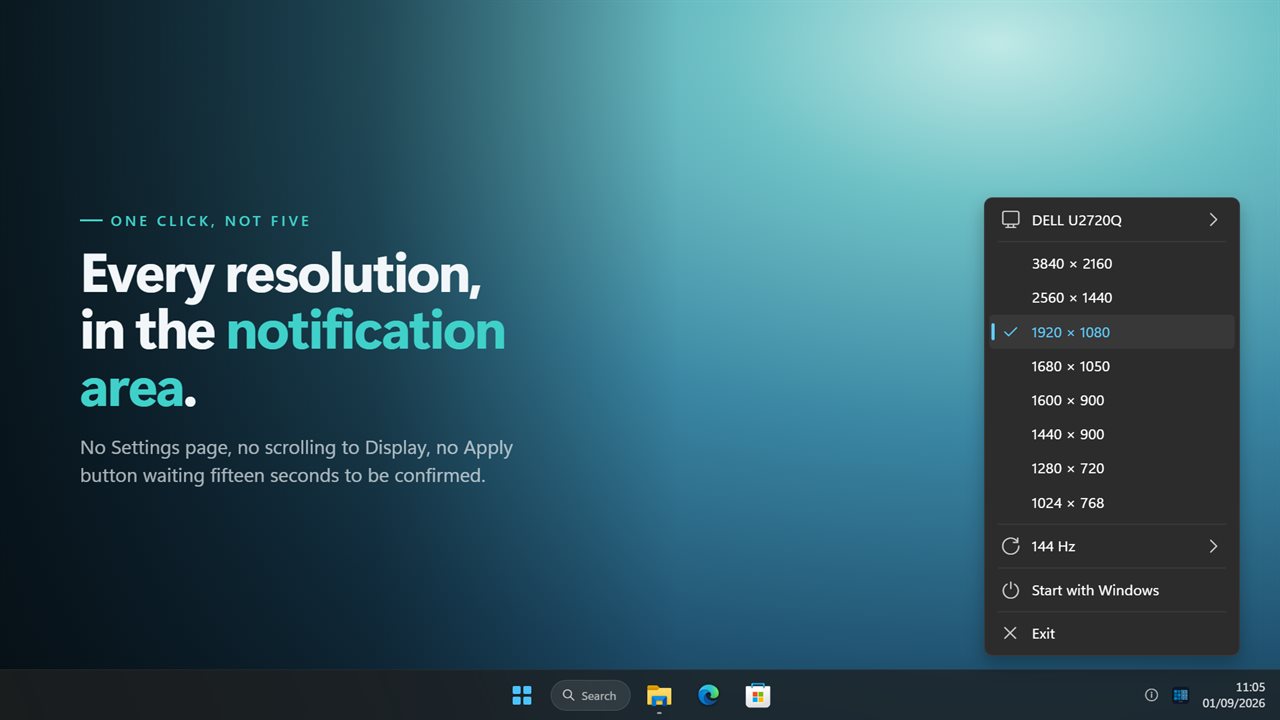
Changing screen resolution in Windows means opening Settings, finding Display, scrolling to the drop-down and confirming a dialog. Quick Resolution Switcher puts every mode your display reports one click away in the notification area. It changes any display, not just the primary one, lists them by the name Windows knows them by, and lets you pick the refresh rate as well. When a monitor refuses a mode, it says so rather than closing the menu as though nothing happened.
Every resolution your display reports, one click from the tray.
See it in action
About Quick Resolution Switcher
Windows keeps screen resolution four clicks deep, behind a Settings page and a confirmation dialog that counts down at you. Quick Resolution Switcher puts it in the notification area.
Every mode, one click away
Click the icon and pick. The list is every size your display actually reports, largest first, with the one you are on marked. There is no window to close afterwards.
One row per size, not one per mode. A monitor that offers 1920 × 1080 at six different refresh rates would otherwise fill the menu with six rows that read identically — so each size appears once, at the best rate it supports, and the rates live in their own list.
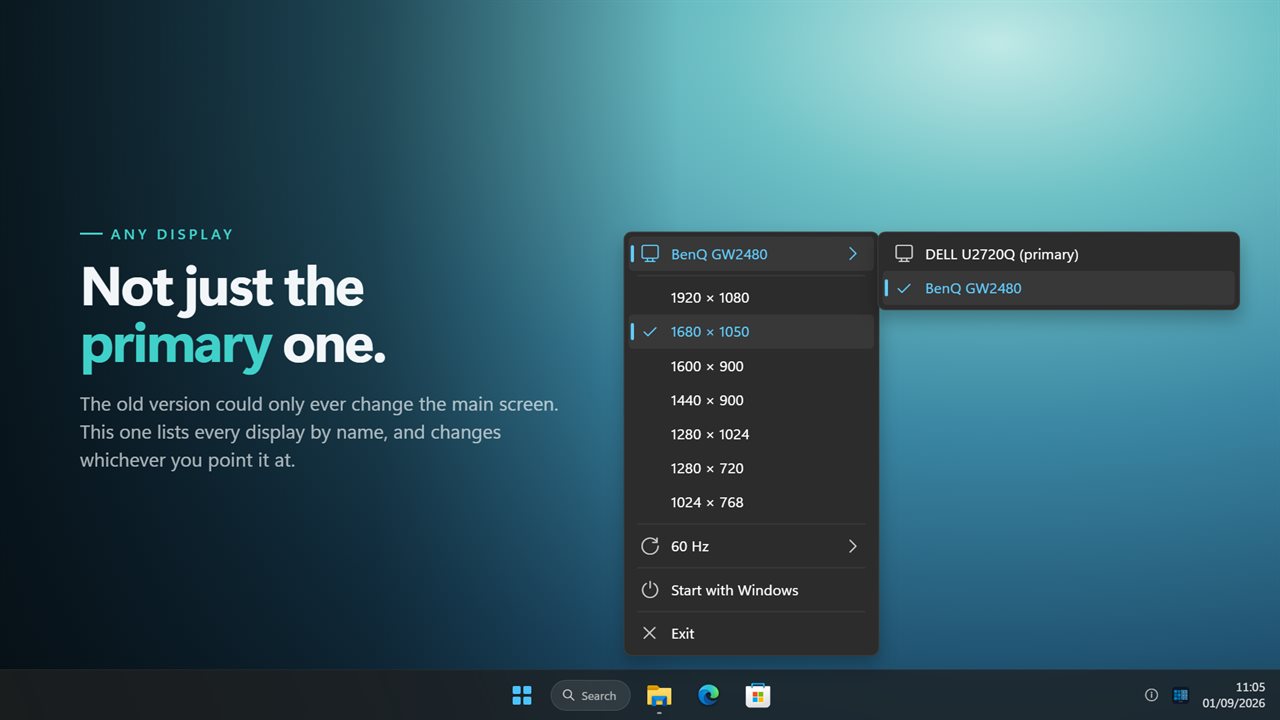
Any display, not just the main one
This is the part the old version could not do. It drove the primary display and nothing else, on every machine, whatever else was plugged in.
This one lists every display by the name Windows knows it by, with the primary one marked, so two monitors of the same model can be told apart — and it changes whichever one you point it at.
The refresh rate as well
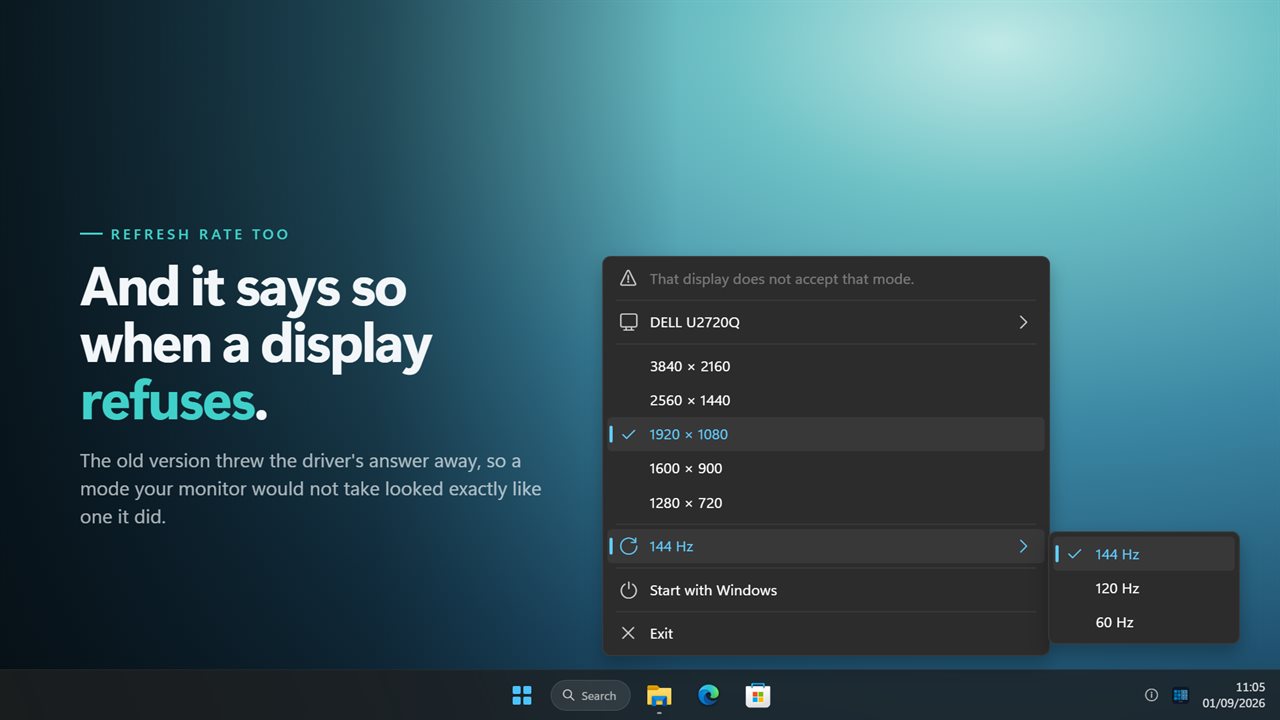
Once a size is chosen, the rates that size supports are one more click away. The old version never touched refresh rate at all.
When a display says no
Some modes are refused, and the driver says why. The old version threw that answer away, so a mode your monitor would not take looked exactly like one it did — the menu closed and the screen stayed as it was. This one reports it, at the top of the menu, in words.
Where it lives
In the notification area, with no window anywhere. The menu is drawn to match the rest of Windows 11 rather than handed over as a grey box from 1995, and it follows your light or dark theme.
It can start with Windows. Everything happens on this PC — there is no account, nothing is uploaded, and it works with no connection at all.
Features
- Every resolution your display reports, one click away in the notification area
- Changes any display, not only the primary one — which is all the old version could do
- Displays are listed by the name Windows knows them by, with the primary one marked
- Refresh rate is a choice too, on the resolution you are already using
- One row per size, at the best rate it supports, instead of the same size six times
- Says so when a display refuses a mode, instead of failing quietly
- Sorted largest first, so the list reads the way you look for a resolution
- Reads the current mode fresh each time, so a game that changed it cannot leave the mark wrong
- Starts with Windows
- Follows the Windows light and dark themes
- Works offline. No account, and nothing is uploaded
Details
- Works on
- Windows 10 (1809 or later) and Windows 11
- Download
- About 2.6 MB
- Version
- 2.0.13, updated October 2026
- First released
- August 2022
- Price
- $2.99 once. No subscription.
- Category
- Productivity
What's new in 2.0.13
- New: change any display, not just the primary one. The old version could only ever drive the main screen
- New: displays are listed by the name Windows knows them by, with the primary one marked
- New: pick the refresh rate for the resolution you are on. The old version never touched it
- New: when a display refuses a mode, the app says so. The driver's answer used to be discarded
- One row per size at its best refresh rate, instead of the same resolution repeated once per rate
- The list no longer drops everything below 1024 × 500, and no longer sorts as text — which put 800 × 600 above 1920 × 1080
- The list is rebuilt when displays change, instead of growing every time one was plugged in
- Redesigned menu that matches Windows 11 and follows the light and dark themes
Questions
Anything else? Ask us
Which versions of Windows does it run on?
Windows 10 (version 1809 or later) and Windows 11.
Is it a subscription?
No. Quick Resolution Switcher is a one-time purchase of $2.99, and updates are included.
How do I get it?
EvlarSoft apps are moving to direct downloads from this site. Ask to be notified and we will email you as soon as Quick Resolution Switcher is ready to download.